
Email Builder Autosave
This article explains how Email Builder Autosave automatically protects your email campaign drafts by saving your work every 30 seconds, eliminating the risk of losing progress due to browser crashes, connection issues, or accidental navigation.
You'll learn how autosave works, how to identify autosaved drafts, and best practices for managing your email campaigns with this automatic protection feature.
What is Email Builder Autosave?
Email Builder Autosave is an automatic draft protection feature that saves your email campaign work every 30 seconds without requiring manual action. This background process ensures that your content, design changes, and campaign settings are continuously preserved while you build and edit your emails.
The autosave feature operates silently in the background, creating recovery points for your work. Whether you're designing a new campaign from scratch, editing an existing template, or making last-minute adjustments before sending, autosave provides a safety net that protects against unexpected data loss from browser issues, network interruptions, or accidental page navigation.
Autosaved drafts are stored as separate versions in your email campaigns list, making them easy to identify and recover when needed. This feature works across all email campaign types in the Email Builder, providing consistent protection throughout your email creation workflow.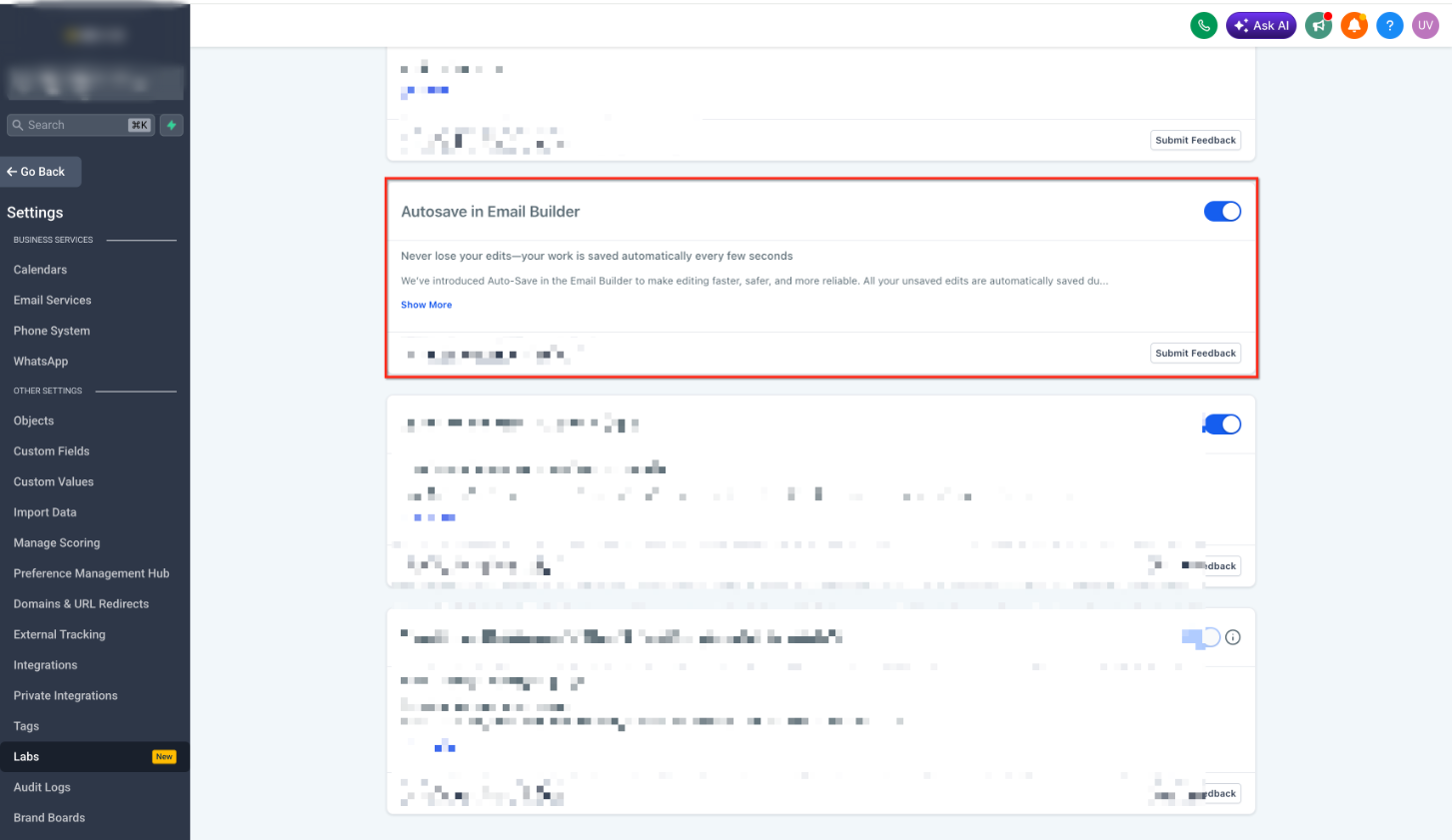
Key Benefits
Email Builder Autosave delivers comprehensive protection for your email campaign work, ensuring you never lose valuable content or design progress.
How Autosave Works
Email Builder Autosave functions automatically once you begin creating or editing an email campaign, requiring no configuration or manual activation.
The autosave feature begins working as soon as you open the Email Builder to create a new campaign or edit an existing one. There are no settings to enable or buttons to click — protection starts immediately.
While you work in the Email Builder, the system automatically saves your current state every 30 seconds. This includes all content changes, design modifications, and campaign settings you've configured during your editing session.
The autosave process happens in the background without pausing your work or displaying save notifications. You can continue editing, designing, and configuring your email campaign while the system silently preserves your progress.
Each autosave creates a distinct draft version in your campaigns list. These autosaved drafts are stored separately from your main campaign, allowing you to recover work without overwriting your original email if needed.
Identifying Autosaved Drafts
Autosaved drafts are clearly marked in your email campaigns list, making them easy to distinguish from regular campaigns and manually saved drafts.
Autosaved drafts appear in your campaigns list with a distinctive label and timestamp showing when the last autosave occurred. Look for campaigns that include "Autosaved" or similar designation in their status or name to identify automatically protected drafts.
When you need to recover work after an unexpected disruption:
- Navigate to your email campaigns list in LeadConnector
- Look for campaigns with the autosaved designation or label
- Open the autosaved draft to review the recovered content
- Continue editing from where you left off, or save the draft with a new name if needed
Autosaved drafts remain available in your campaigns list until you manually delete them or save over them with a new version. This ensures you can recover your work even if you don't return to the campaign immediately after an unexpected interruption.
Best Practices
While autosave provides automatic protection, following these best practices helps you maximize the value of this feature and maintain an organized campaign workflow.
Check your campaigns list regularly for autosaved drafts, especially after unexpected browser closures or connection issues. This ensures you don't lose track of recovered work and can continue from your most recent progress.
Clean up autosaved drafts you no longer need to keep your campaigns list organized. Once you've successfully saved and completed an email campaign, remove any autosaved versions to avoid confusion between draft and final versions.
While autosave provides excellent protection, manually save important milestones or complete sections of your campaign. This creates named save points you can easily identify and gives you more control over version management.
Ensure you have a reliable internet connection while working in the Email Builder. Although autosave helps protect against connection issues, a stable connection ensures your saves complete successfully and reduces the risk of data loss.
Give your campaigns clear, descriptive names before you begin editing. This makes it easier to identify which autosaved draft belongs to which campaign if you need to recover work across multiple email projects.
Frequently Asked Questions
If you experience issues with Email Builder Autosave or need assistance recovering autosaved drafts, our support team is here to help:
- Navigate to the Support section in your LeadConnector dashboard
- Click the chat icon in the bottom right corner to start a live chat with our support team
- Provide details about your autosave question or the campaign you need help recovering