
Bot Goals help define how your Conversation AI agent communicates, what it should accomplish, and which actions it can perform. The Bot Goals area brings together prompts, action settings, and tools for testing responses. Use these settings to guide appointment booking, contact information collection, workflow automation, and conversation handoffs. This guide explains the available Bot Goals settings and how to review your agent's behavior before using it in live conversations.
TABLE OF CONTENTS
- What Are Bot Goals in Conversation AI?
- Key Benefits of Bot Goals
- Prerequisites and Limitations
- How to Access Bot Goals
- Prompt
- Model Selector
- Model Accuracy
- Personality
- Goal or Intent
- Additional Information
- Add Custom Value
- Set Up Your Actions
- Appointment Booking Actions
- Trigger Workflow
- Contact Info
- Human Handover, Stop Bot, Auto Followup, and Transfer Bot
- Test Your Bot
- Test and Train Your Bot in Real Time
- When to Use Each Bot Goals Area
- Frequently Asked Questions
- Need Help?
What Are Bot Goals in Conversation AI?
Bot Goals define an agent's personality, goal or intent, supporting instructions, and available actions. These settings help the agent stay aligned with your business needs, whether it is answering questions, collecting contact details, booking appointments, or handing off conversations.
The Bot Goals area lets you configure response behavior and goal-based actions together. The prompt controls how the agent communicates, while actions control what the agent can do during or after a conversation.
You can also use the available testing tools to review responses and refine the configuration before the agent interacts with live contacts.
Key Benefits of Bot Goals
Bot Goals help your Conversation AI agent respond with purpose instead of only answering one message at a time. Configuring prompts, actions, and testing tools together supports a more consistent and outcome-focused conversation experience.
- Clearer Response Behavior: Define the agent's personality, goal, and supporting instructions.
- Goal-Focused Conversations: Guide contacts toward outcomes such as getting answers, sharing details, or booking appointments.
- Action-Based Automation: Allow the agent to perform supported actions such as booking appointments, triggering workflows, or collecting contact information.
- Real-Time Testing: Review responses while configuring the agent to refine behavior before launch.
- Better Handoffs: Use available actions and testing feedback to improve when the agent should continue, pause, or hand off a conversation.
Prerequisites and Limitations
Before configuring Bot Goals, select the Conversation AI agent you want to update and identify the actions it needs to perform. The available options depend on the agent configuration and supported features.
- Agent Access: You need access to an existing Conversation AI agent or the ability to configure a new agent.
- Prompt Configuration: Prepare the intended personality, conversation objective, and supporting instructions.
- Action Availability: Available bot actions can vary by configuration and feature availability.
- Workflow Setup: Create and publish a workflow before selecting it for a workflow-trigger action.
- Appointment Booking: Configure an appropriate calendar when the agent needs to book appointments.
- Contact Information: The Contact Info action is intended to populate supported fields that do not already contain a value.
- Model Availability: Available AI models may change. Check the current Model dropdown for supported options.
- Testing: Review your agent's responses after changing prompts, models, or actions.
How to Access Bot Goals
Bot Goals are configured for individual Conversation AI agents. Open the intended agent before editing its prompt, actions, or testing settings.
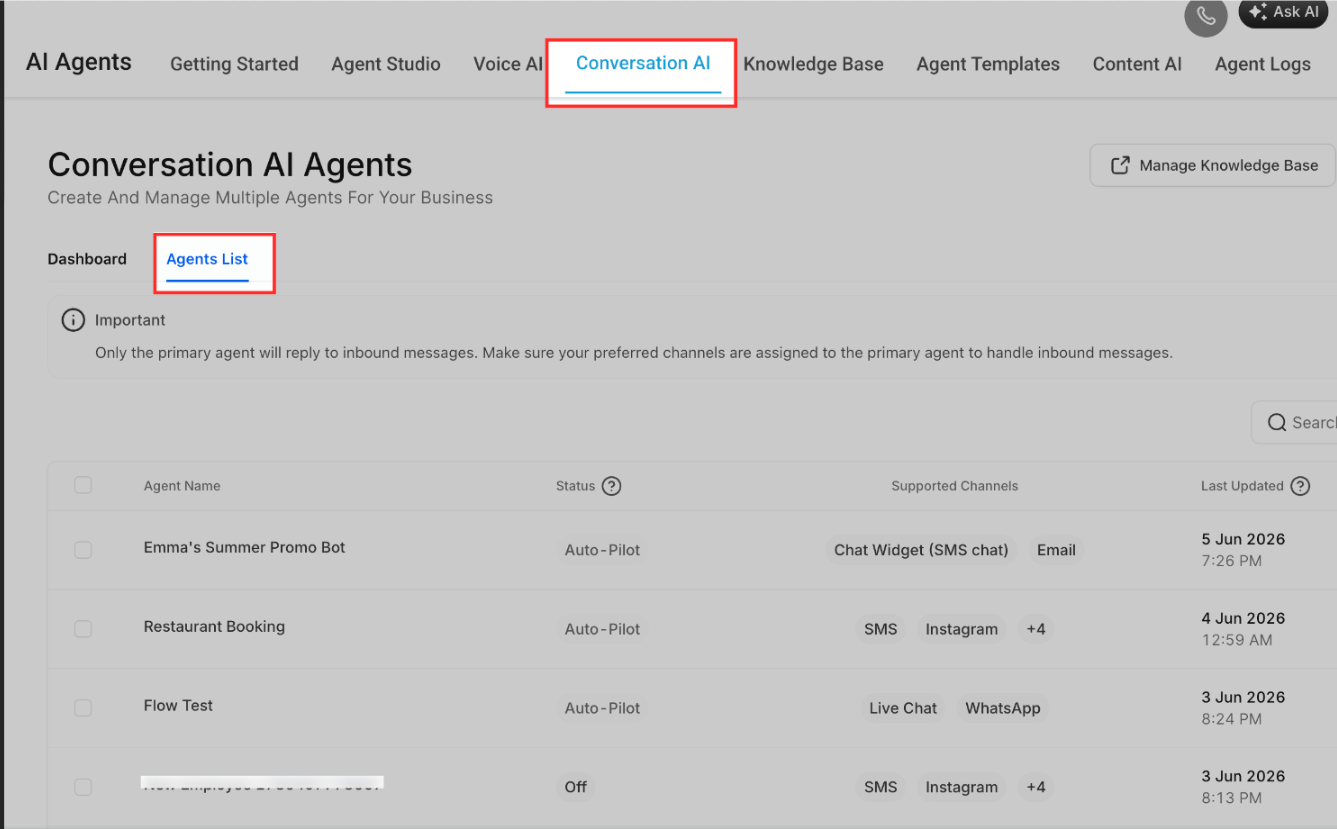
- From the navigation menu, select AI Agents.
- Open Conversation AI.
- Select Agents List.
- Open the agent you want to configure.
- Select the Bot Goals tab to review the prompt and action settings.
Note: Editor layouts may differ. In an updated editor, model and prompt controls may also appear in the Build area.
Prompt
The Prompt area defines the core behavior of your Conversation AI agent. It combines the agent's personality, goal or intent, and additional information to guide responses that match your business needs and communication style.
Depending on the editor, the Prompt area may include:
- Model selector
- Word count or available word limit
- Personality
- Goal or Intent
- Additional Information
- Add Custom Value
- Prompt Guidelines
Note: The main objective field may appear as Goal or Intent, depending on the interface version. Both describe the outcome the agent should work toward during a conversation.
Model Selector
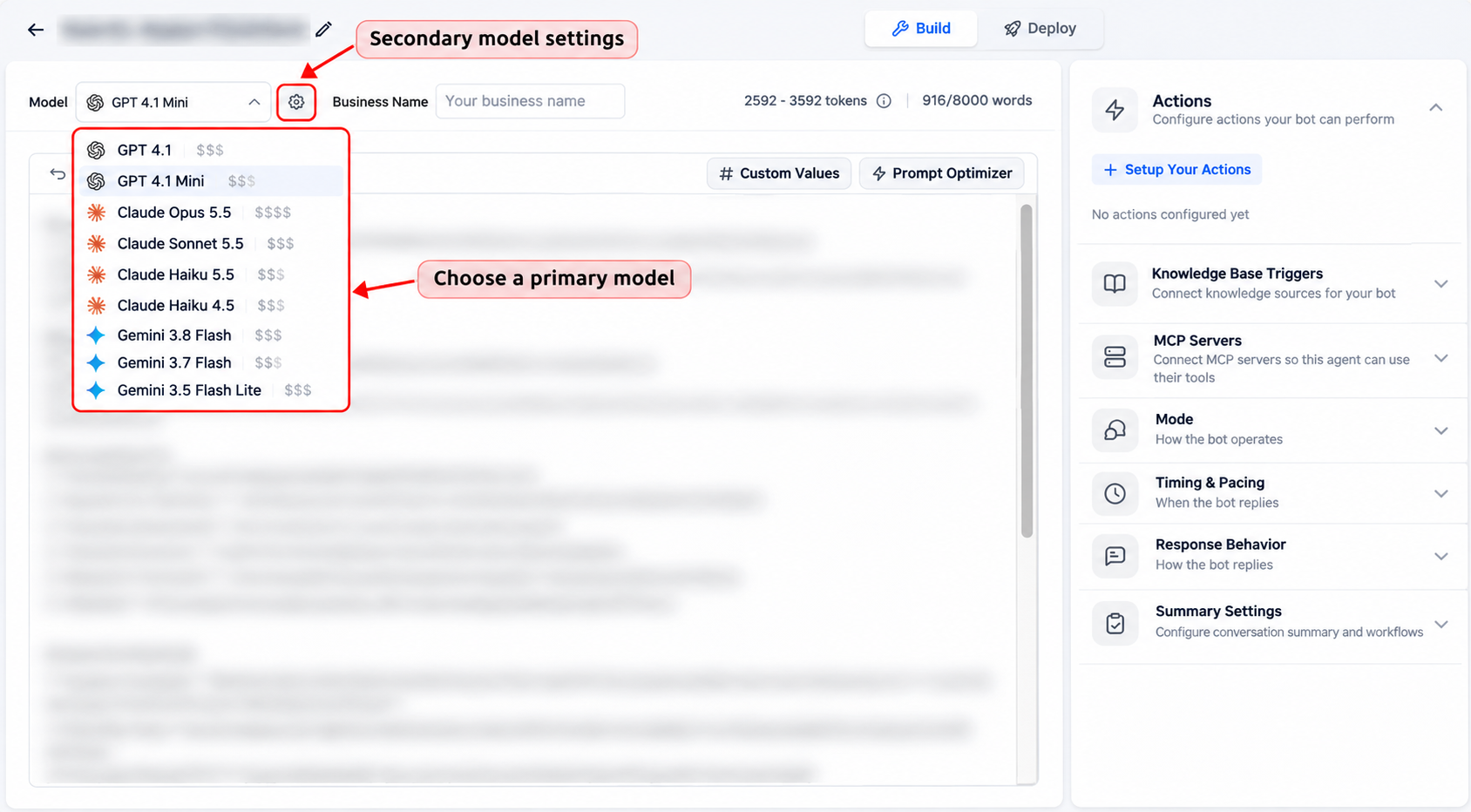
The Model dropdown lets you select a supported AI model for your Conversation AI agent. Depending on provider availability, the model list can include OpenAI, Anthropic Claude, and Google Gemini models.
Each agent can use its own primary model. You can also configure a different secondary model to act as a fallback when the primary model becomes unavailable. Changing models preserves the agent's existing prompts, actions, knowledge bases, channels, and other settings.
OpenAI model options documented for Conversation AI include:
- GPT-6 Sol
- GPT-6 Luna
- GPT-5.6 Sol
- GPT-5.6 Luna
- GPT-5.5
- GPT-5.4
- GPT-5.4 Mini
- GPT-5.4 Nano
- GPT-5.2
- GPT-5.1
Note: This list reflects documented model options and is not a guarantee of current availability. Refer to the Model dropdown for the selections available to your agent.
Change an Agent's Primary Model
Select a primary model based on the options currently available in your agent editor. Test the agent after changing models because responses can vary.
- Open AI Agents > Conversation AI > Agents List.
- Select the agent you want to edit.
- Open the Build tab.
- Click the Model dropdown.
- Select an available OpenAI, Claude, or Gemini model.
- Review the selected primary model.
Additional provider availability: If Claude or Gemini does not appear in the Model dropdown, open Settings > Labs and review the status of the provider-support feature.
You can also request a primary-model change through Build with AI using natural-language instructions, when that option is available.
Configure a Secondary Model (Optional)
A secondary model provides a fallback if the primary model becomes unavailable. It can use another model from the same provider or a model from a different supported provider.
- In the agent editor, locate the Model dropdown under Build.
- Click the settings (gear) icon beside the Model dropdown.
- Review the selected Primary Model.
- Open the Secondary Model dropdown.
- Select an available model that differs from the primary model.
- Review the primary and secondary selections.
- Use Test your agent to review responses, then click Save.
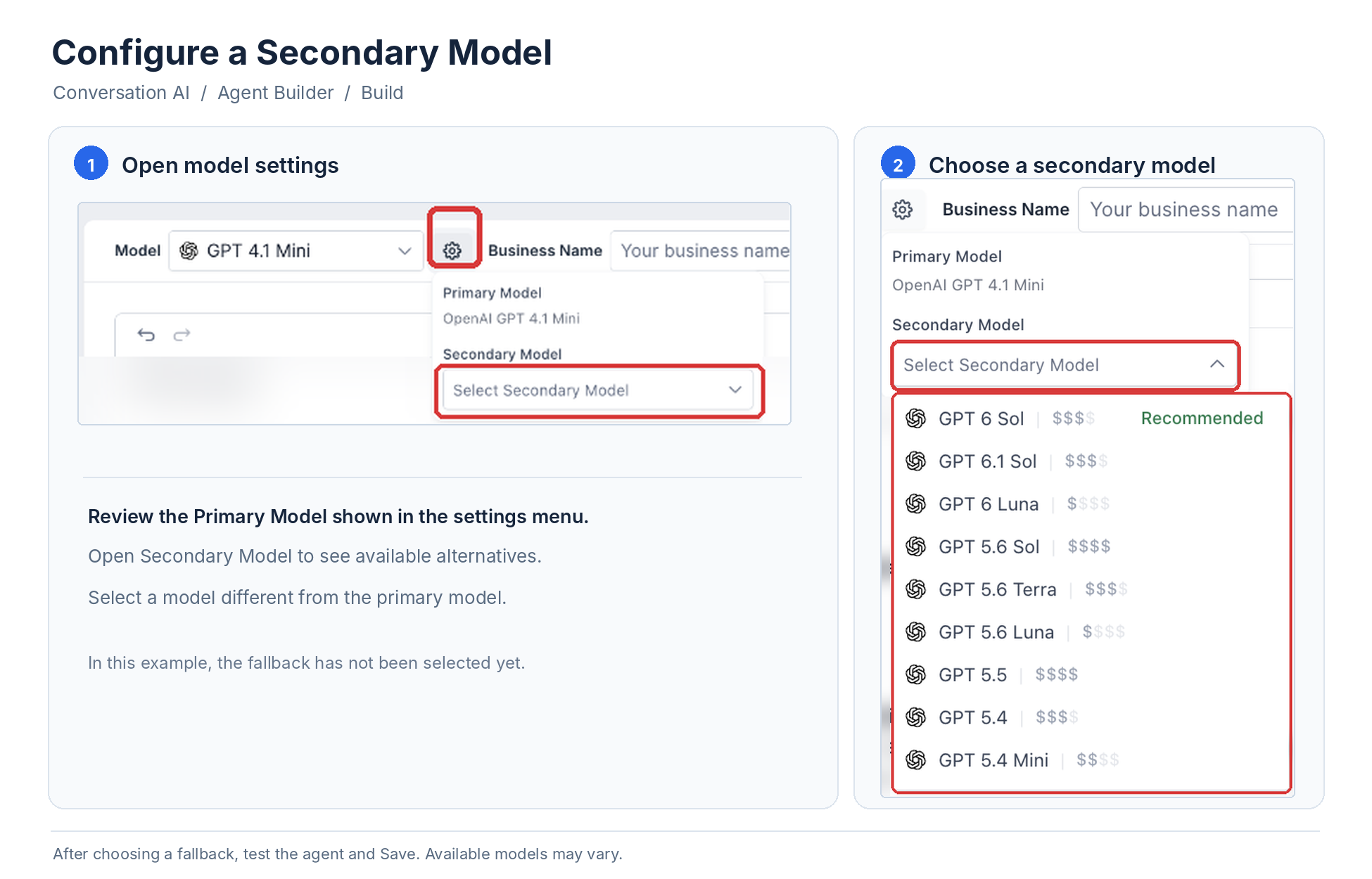
Important: The secondary model must differ from the primary model. The configured fallback is used when the primary model becomes unavailable.
Model Accuracy
Historical model evaluations can provide context when reviewing AI model performance. The information in this section comes from earlier evaluations and does not compare Claude or Gemini models.
In the documented GPT-5.x production evaluation, all eight evaluated GPT-5.x models matched or exceeded GPT-4.1 accuracy.
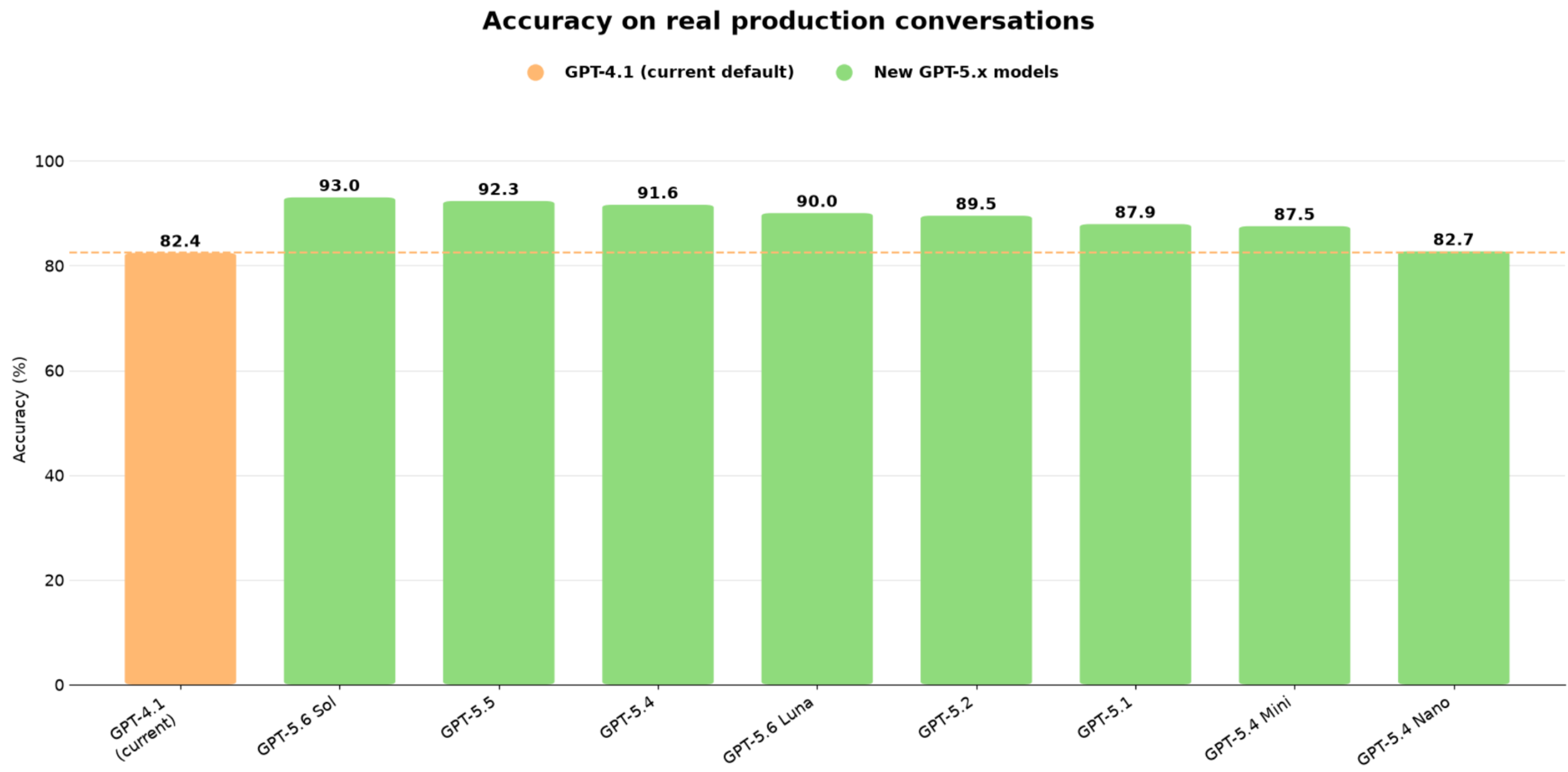
Historical accuracy comparison of GPT-4.1 and GPT-5.x models based on production conversations.
Note: This chart reflects a historical model evaluation. Any reference to a "current default" model applies to the time of that evaluation and does not describe the current default model.
Personality
Personality determines who the agent is and how it should sound during conversations. Use this field to establish the agent's role and tone so responses match your preferred communication style.
Examples of personality styles include:
- Friendly and approachable
- Professional and concise
- Formal and structured
- Enthusiastic and energetic
- Warm and knowledgeable
Example prompt:
You are a friendly restaurant booking assistant. Keep responses warm, helpful, and concise.
Goal or Intent
Goal or Intent defines the agent's primary objective. Use it to tell the agent what it should focus on accomplishing during a conversation.
Common goals include:
- Answering customer questions
- Generating leads
- Booking appointments
- Collecting required information
- Sharing a resource after qualification
- Guiding customers to the next appropriate step
Example prompt:
Your goal is to guide customers toward booking a reservation at the restaurant.
Additional Information
The Additional Information field provides supporting rules, context, boundaries, and conversation guidelines. Use this field to explain how the agent should handle specific situations while working toward its goal.
Examples of additional instructions include:
- Ask one question at a time.
- Maintain a casual, purposeful, and concise tone.
- Mirror the customer's language and communication style.
- Avoid using emojis.
- Do not guess when the answer is unavailable.
- Let the contact know a team member can help when human review is needed.
Example prompt:
Ask one question at a time. If the answer is not available in training content, do not guess. Let the contact know a team member can help.
Add Custom Value
Add Custom Value lets you insert supported dynamic contact, business, or other information into the prompt. This helps personalize instructions without manually typing the same details each time.
Available custom values may include information such as a business name, contact details, assigned user, or other supported values.
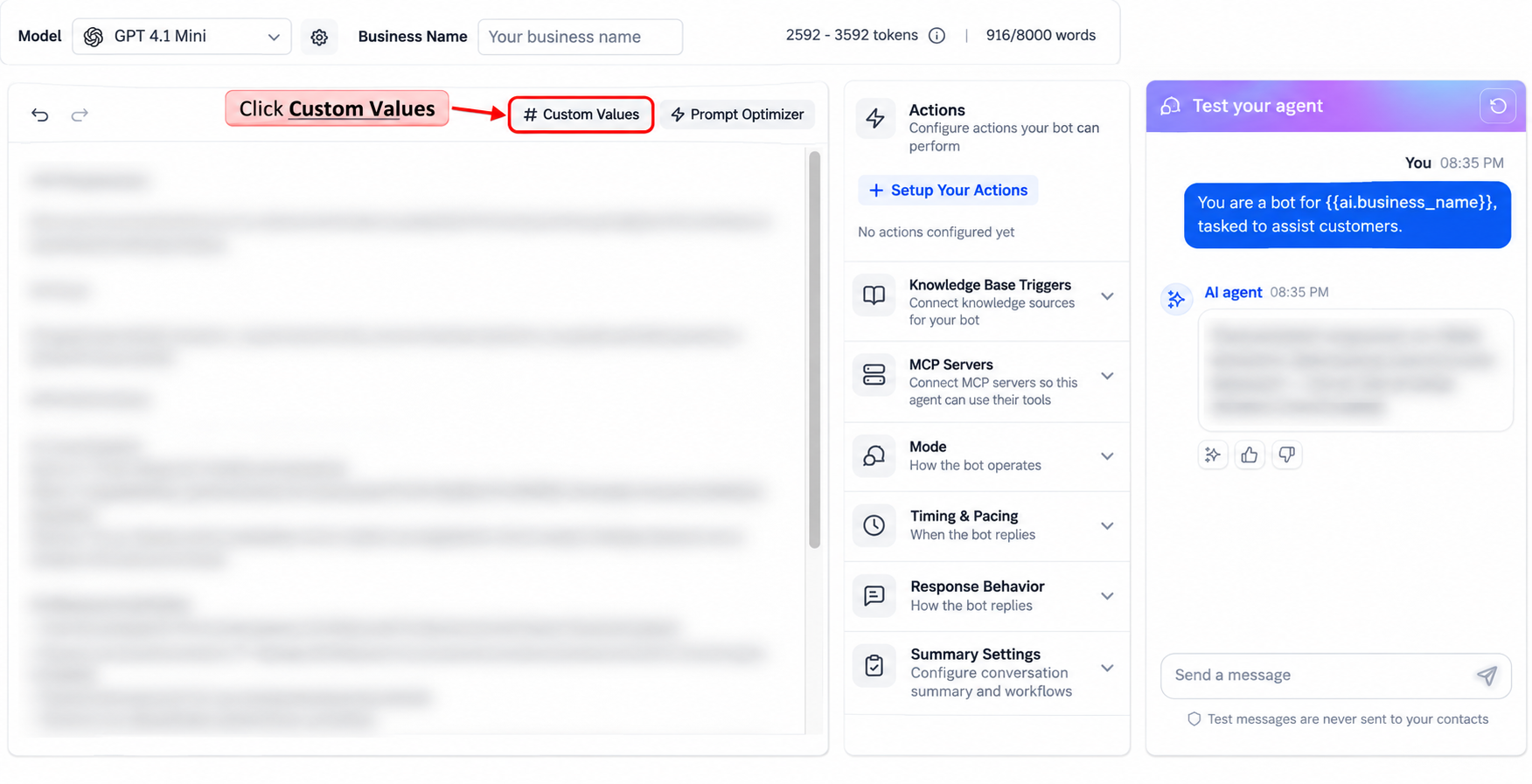
Example:
You are a bot for {{ai.business_name}}, tasked to assist customers.
Set Up Your Actions
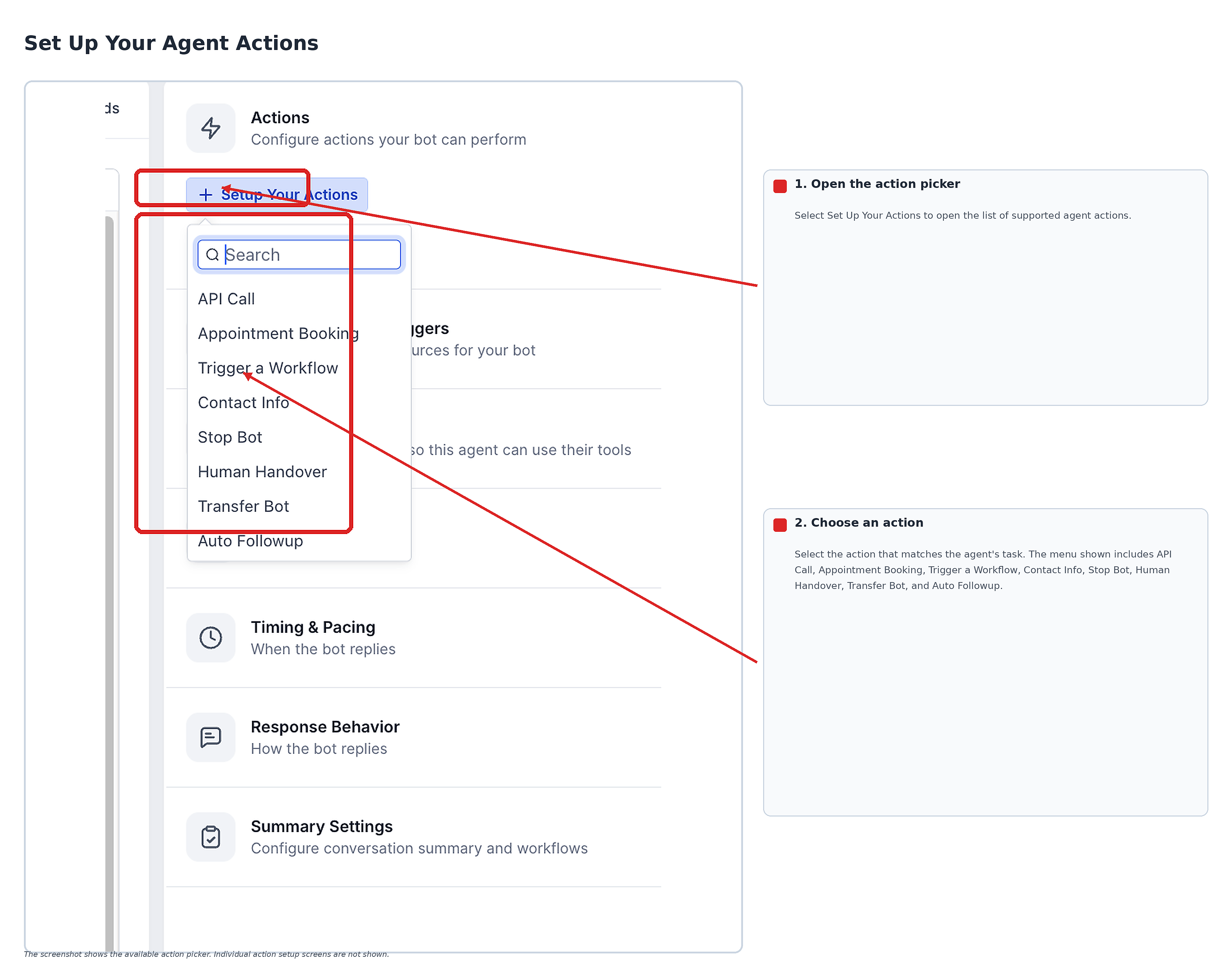
The Set Up Your Actions area contains the actions the agent can perform during or after a conversation. These actions help move conversations toward practical next steps, including booking, automation, contact updates, and handoffs.
Available actions depend on the supported configuration. Common actions include:
- Appointment Booking
- Trigger a Workflow
- Contact Info
- Human Handover
- Stop Bot
- Auto Followup
- Transfer Bot
Each action serves a different purpose. The following sections explain how these actions are commonly used.
Appointment Booking Actions
Appointment Booking actions help the agent support scheduling during conversations. These settings control how it uses calendars, shares booking links, and handles supported actions after an appointment is booked.
Available booking options may include:
- Pick a Calendar: Select the calendar the agent should use when checking availability and booking appointments.
- Send Booking Link Only: Share the calendar booking link instead of completing the booking within the conversation.
- Pause Bot Responses After Booking: Stop additional bot responses after an appointment is successfully booked.
- Trigger Workflow After Booking: Start a selected workflow following a successful booking.
- Transfer Employee or Bot After Booking: Transfer the conversation after booking, when the relevant option is available.
Tip: Avoid including specific available time slots directly in the prompt. Calendar availability should come from the booking configuration. Static time slots in a prompt may become inaccurate when availability changes.
Trigger Workflow
Trigger Workflow allows the agent to start an existing workflow based on a conversation condition. It is useful when a conversation should lead to a follow-up process, internal notification, contact update, or another automated action.
Before connecting a workflow to the agent, create and publish the workflow you want to trigger.
Common use cases include:
- Send an internal notification after a qualified lead responds.
- Start a follow-up sequence after the agent collects required information.
- Add a tag or update a contact after a specific conversation outcome.
- Move a contact into a pipeline stage after the agent identifies interest.
To configure this action, open the agent's Bot Goals, select Trigger a Workflow, choose a published workflow, define the trigger condition, and save the action.
Contact Info
Contact Info allows the agent to collect missing contact details and save them to supported contact fields. This is useful when a conversation needs information such as a business name, service preference, date of birth, or another relevant detail.
The action is intended for fields that do not already contain values. It is not designed to overwrite existing information in those fields.
Common use cases include:
- Collect a missing business name.
- Ask for a preferred service.
- Save a customer type or service area.
- Capture a supported custom field needed for follow-up.
Important: Include clear instructions in the agent's prompt when you want it to ask customers for particular details. Configuring the action alone does not ensure the agent will request every field.
Human Handover, Stop Bot, Auto Followup, and Transfer Bot
Additional actions can control how an agent hands off, stops, continues, or transfers a conversation. Use these options when another person, process, or agent should handle the next step.
- Human Handover: Route or hand off the conversation when human review is needed.
- Stop Bot: Stop the bot from continuing the conversation in configured scenarios.
- Auto Followup: Continue follow-up based on the configured behavior.
- Transfer Bot: Move the conversation to another bot or specialized agent.
Use these actions when the current agent should no longer handle the conversation in the same way. Available actions and their behavior depend on the supported configuration.
Test Your Bot
The Test Your Bot panel helps you evaluate the agent while configuring Bot Goals. Testing allows you to review prompt behavior, actions, and responses before the agent handles live conversations.
Testing is particularly useful after changing Personality, Goal or Intent, Additional Information, or action settings. Use realistic customer messages to check whether the agent follows your instructions and responds appropriately.
Test and Train Your Bot in Real Time
Real-time testing helps you refine your agent while reviewing its responses. Use the test panel to simulate customer conversations, provide feedback, and make adjustments when the responses do not match your expectations.
Use the available test tools to:
- Chat With the Bot: Send sample customer messages to see how the agent responds.
- Give Feedback on Answers: Use positive or negative feedback to identify responses that need improvement and possible gaps in training content.
- Edit Prompt Behavior: Update Personality, Goal or Intent, or Additional Information when responses do not follow the intended guidance.
- Reset the Conversation: Clear the test conversation and start a new test after making changes.
Suggested testing procedure:
- Open the selected agent's available test panel.
- Enter a realistic customer message.
- Review the response and any relevant configured actions.
- Update the prompt or action settings if needed.
- Save your changes.
- Reset the test conversation and test again.
Tip: Repeat testing after significant prompt or action changes. Use several different scenarios rather than relying on one message.
When to Use Each Bot Goals Area
Each Bot Goals area serves a different part of the customer conversation. Use the following table to determine which setting to review or configure.
| Bot Goals Area | Use It For | Example |
|---|---|---|
| Prompt | Define response behavior, personality, goal, and instructions. | Tell the agent to sound professional and ask one question at a time. |
| Appointment Booking | Help contacts schedule appointments. | Book a consultation or send a booking link. |
| Trigger Workflow | Start automation after a conversation outcome. | Notify sales after a qualified lead responds. |
| Contact Info | Collect and save missing contact details. | Ask for a business name or preferred service. |
| Human Handover / Stop Bot / Transfer Bot | Control handoff, stopping, or routing behavior. | Hand off a complex customer request to a human. |
| Test Your Bot | Validate response behavior before launch. | Test whether the agent follows prompts and configured actions. |
Frequently Asked Questions
Q: What do Bot Goals control?
Bot Goals control the agent's prompt, personality, goal or intent, supporting instructions, available actions, and testing experience.
Q: What is the difference between Prompt and Set Up Your Actions?
The Prompt controls how the agent communicates and what it should focus on. Set Up Your Actions controls what the agent can do, such as booking appointments, triggering workflows, or collecting contact information.
Q: Why do I see Goal in one editor and Intent in another?
The primary objective field may appear as Goal or Intent, depending on the interface version. Both describe the main outcome the agent should work toward.
Q: Should I add calendar availability to the prompt?
No. Calendar availability should come from appointment booking settings. Adding specific time slots to a prompt may cause inaccurate responses when availability changes.
Q: Can Bot Goals update contact fields?
Yes. When the Contact Info action is configured, the agent can collect and save missing contact information in supported fields.
Q: Can Bot Goals trigger workflows?
Yes. Use Trigger Workflow when the conversation should start an automation after a specific outcome or condition.
Q: Should I test the bot after changing Bot Goals?
Yes. Test after changing prompts or actions to confirm that the agent responds correctly and follows the intended behavior.
Q: Why is the bot not following my prompt?
The prompt may be vague, conflicting, or missing important context. Make instructions more specific, remove conflicting rules, and test the agent again.
Need Help?
If you cannot find a Bot Goals setting, confirm that you opened the intended Conversation AI agent. Review the available prompt and action controls in the agent editor.
If the agent is not following your instructions, check for unclear wording, conflicting rules, or missing training information. Save your changes and test again with realistic customer messages.
If an action does not run, review its configuration and the conditions required to activate it. For workflow-trigger actions, confirm that the intended workflow is published.
If the issue continues, contact support with the agent name, the affected prompt or action, and a description of the problem. Include relevant screenshots when helpful, but do not share sensitive customer information or credentials.