
Learn how to manage Apple Pay and Google Pay from the Stripe integration, configure the correct Order Form and payment environment, understand Apple Pay domain verification, and troubleshoot wallets that do not appear at checkout.
Enabling a wallet does not guarantee that every customer will see it. Wallet visibility can depend on the product area, Test or Live configuration, Stripe account eligibility, customer location, browser or device, wallet setup, and additional requirements such as Apple Pay domain verification.
2. Key Benefits of Apple Pay and Google Pay
3. Prerequisites and Limitations
4. How To Set Up Apple Pay and Google Pay for Order Forms
5. How Wallet Availability Works at Checkout
6. Troubleshoot Apple Pay and Google Pay
7. Frequently Asked Questions
8. Need Help?
What Are Apple Pay and Google Pay in Order Forms?
Apple Pay and Google Pay are digital wallet payment methods customers can use during eligible Order Form checkouts. They are available through Stripe and can appear alongside other enabled payment methods when the customer and checkout environment meet the applicable requirements.
Apple Pay and Google Pay can be used with eligible Funnels - One-Step Order Form and Funnels - Two-Step Order Form payment experiences.
Key Benefits of Apple Pay and Google Pay
Digital wallets can reduce the information eligible customers need to enter manually during checkout while giving businesses centralized control over where supported Stripe payment methods are available.
- Faster Checkout: Eligible customers can use a saved wallet instead of manually entering card information.
- Centralized Management: Manage supported Stripe payment methods directly from the sub-account.
- Order Form Support: Configure wallet availability for eligible One-Step and Two-Step Order Forms.
- Separate Environment Controls: Configure supported payment methods independently for Test and Live environments.
- Subscription Controls: Review subscription-specific payment-method settings when the checkout includes recurring products.
Prerequisites and Limitations
Apple Pay and Google Pay only appear when the payment configuration and the customer's checkout environment meet the applicable requirements. Reviewing these conditions first helps prevent unnecessary Order Form troubleshooting.
- Stripe must be connected to the applicable sub-account.
- The wallet must be enabled for the applicable Order Form product area.
- Confirm that you are configuring the correct Test or Live environment.
- The customer's country, device, browser, and payment account must support the selected wallet.
- The customer must have an eligible payment method configured in the applicable wallet.
- Apple Pay requires completed domain verification before it can appear during eligible checkout experiences.
- Subscription checkouts can have separate payment-method settings under Subscriptions.
- The Subscriptions configuration becomes available after a subscription product has been added in Live Mode for the applicable sub-account.
Payment-provider scope: Apple Pay and Google Pay for the Order Form use case covered here are provided through Stripe. Other payment providers have their own supported payment methods and product-area availability.
How To Set Up Apple Pay and Google Pay for Order Forms
Stripe payment methods are managed from the Payments area of the sub-account. Configure the wallets for the applicable Order Form product area and payment environment before testing the customer checkout.
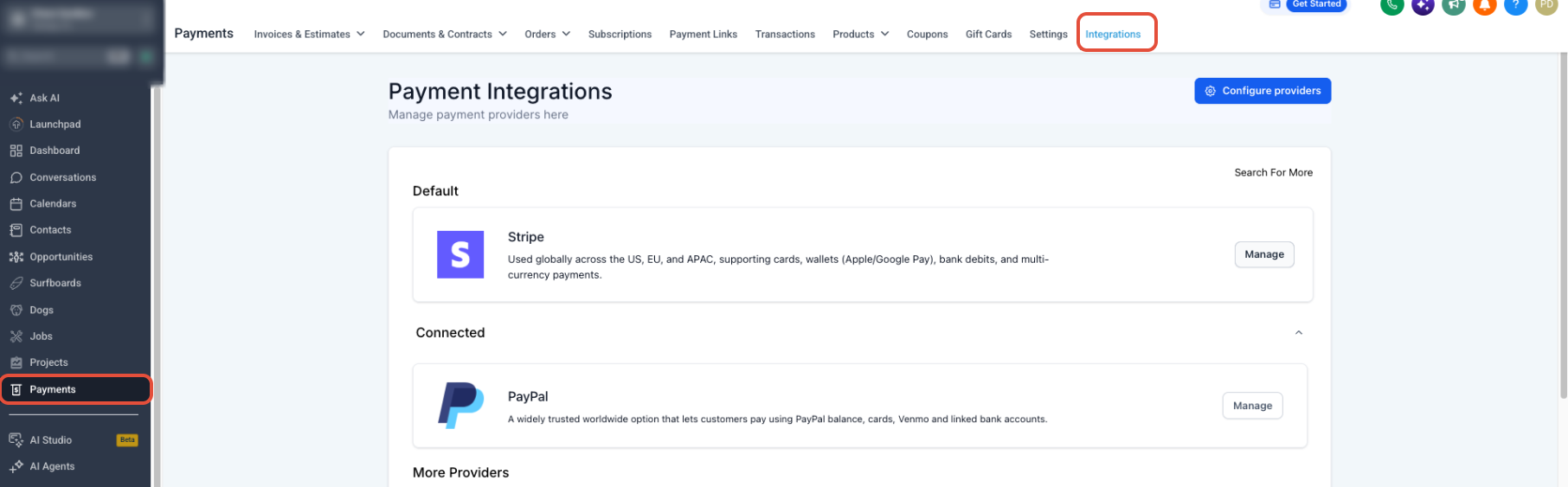
Step 1: Open the Stripe Integration
Start from the Stripe integration so you can access payment-method management and wallet-related configuration for the connected account.
- From the sub-account view, select Payments.
- Select Integrations.
- Locate Stripe.
- Click Manage.
Step 2: Open Manage Payment Methods
The Stripe management page provides access to payment-method settings and the domain-registration control used for Apple Pay and Link.
- On the Manage Payment Integration page, confirm the Stripe connection status.
- Review Register domains for Apple Pay and Link.
- Click Manage Payment Methods.
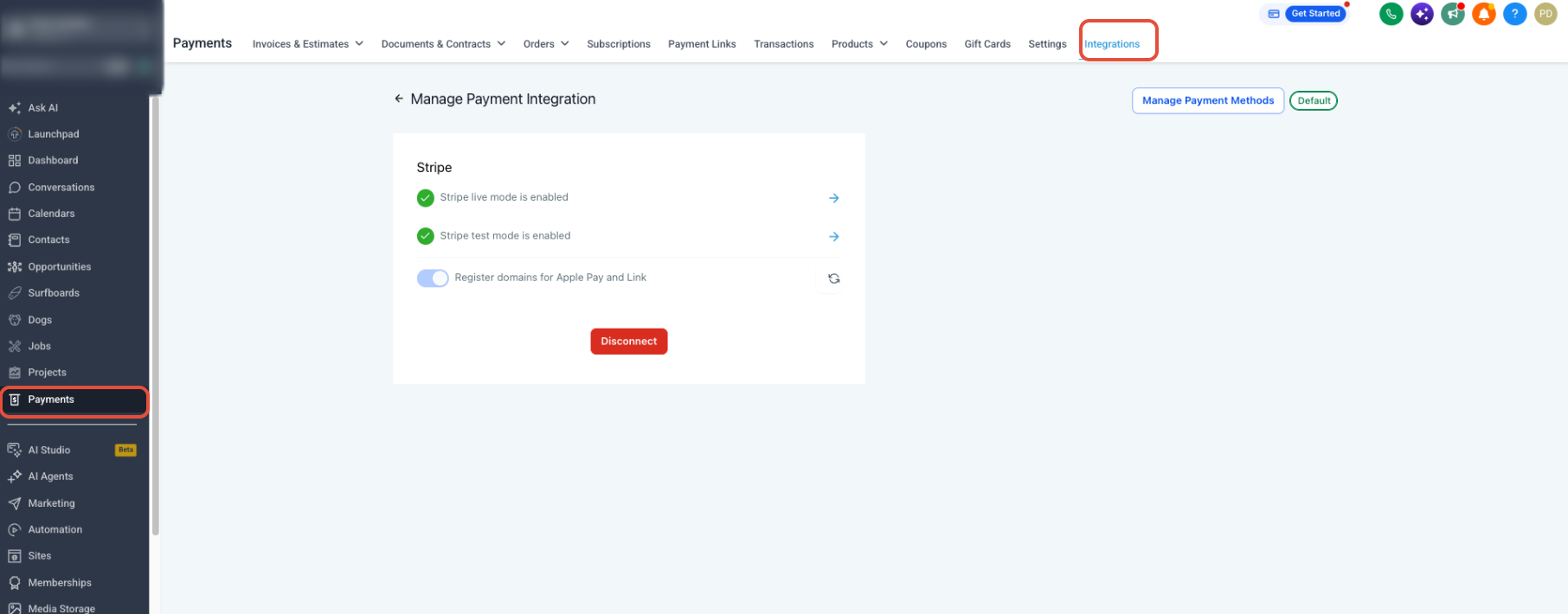
Apple Pay requirement: Apple Pay requires completed domain verification. If Apple Pay is enabled but does not appear at checkout, domain verification should be one of the first settings you review.
Step 3: Configure the Order Form Payment Methods
Payment methods are configured by product area, which lets you control whether a wallet is available for a One-Step Order Form, Two-Step Order Form, or another supported payment experience.
- Review the available Stripe payment-method configurations.
- Locate Funnels - One-Step Order Form or Funnels - Two-Step Order Form, depending on the checkout you use.
- Enable Apple Pay where available.
- Enable Google Pay where available.
- Save the changes.
Step 4: Verify Test or Live Mode
Test and Live payment-method configurations are independent. A wallet enabled only in one environment may not appear when the checkout is using the other environment.
- Confirm whether you are configuring Test or Live.
- Verify Apple Pay and Google Pay are enabled in the environment you plan to test or use.
- Save any changes before testing the Order Form again.
Step 5: Review Subscription Settings When Needed
Subscription products can use a separate payment-method configuration, so recurring checkouts should be reviewed independently from one-time Order Form settings.
- Open the Subscriptions payment-method configuration when it is available.
- Review the available wallet methods for subscription checkout.
- Enable the applicable wallet settings and save your changes.
Subscriptions not visible? The Subscriptions configuration becomes available after at least one subscription product has been added in Live Mode for that sub-account.
How Wallet Availability Works at Checkout
Enabling a wallet makes it available to eligible checkout experiences, but the final payment options displayed to a customer are determined at checkout based on several configuration and eligibility factors.
| Factor | Why It Matters |
|---|---|
| Product Area | The wallet must be enabled for the specific checkout type being used. |
| Test or Live Mode | The method must be enabled in the same environment as the checkout being tested or used. |
| Stripe Account Eligibility | Payment-method availability can depend on account activation, region, and Stripe eligibility requirements. |
| Customer Location | Some payment methods are only available in supported countries or regions. |
| Device and Browser | The customer's checkout environment must support the applicable wallet. |
| Wallet Setup | The customer needs an eligible wallet with a supported payment method configured. |
| Apple Pay Domain Verification | Apple Pay requires domain verification before it can appear on eligible web checkouts. |
If a wallet does not appear, verify the payment configuration and customer eligibility before treating the missing payment option as an Order Form issue.
Troubleshoot Apple Pay and Google Pay
Wallet visibility is determined by several layers of configuration. Start with the Stripe integration and payment-method settings, then verify the checkout environment and customer eligibility.
Troubleshoot Apple Pay
Apple Pay requires an eligible Stripe configuration, the correct Order Form settings, and completed domain verification before it can appear on a supported checkout.
- Go to Payments → Integrations.
- Click Manage for Stripe.
- Open Manage Payment Methods.
- Confirm Apple Pay is enabled for the applicable One-Step or Two-Step Order Form.
- Verify the correct Test or Live environment.
- If the checkout contains a subscription product, review the Subscriptions payment-method settings.
- Confirm the Stripe account is activated and eligible for the payment method.
- Confirm Apple Pay domain verification is complete.
- Test from an eligible customer environment with Apple Pay configured.
Troubleshoot Google Pay
Google Pay visibility depends on the Stripe payment-method configuration and whether the customer's checkout environment is eligible to display the wallet.
- Go to Payments → Integrations.
- Click Manage for Stripe.
- Open Manage Payment Methods.
- Confirm Google Pay is enabled for the applicable One-Step or Two-Step Order Form.
- Verify the correct Test or Live environment.
- If the checkout contains a subscription product, review the Subscriptions payment-method settings.
- Confirm the Stripe account and payment method are eligible.
- Test from a supported customer environment with Google Pay configured.
Troubleshooting order: Check product area, Test/Live mode, payment-method status, Stripe eligibility, and customer environment before changing the Order Form itself.
Frequently Asked Questions
Need Help?
- Neither wallet appears: Confirm Stripe is connected, the correct product area is configured, and the wallet is enabled in the same Test or Live environment as the checkout.
- Apple Pay is missing: Review Register domains for Apple Pay and Link, confirm domain verification is complete, and test from an eligible Apple Pay environment.
- Google Pay is missing: Confirm Google Pay is enabled for the applicable product area and test with a supported customer environment that has an eligible Google Pay wallet.
- Test Mode works but Live Mode does not: Review the Live payment-method configuration separately. Test and Live settings are independent.
- Wallets are missing from subscription checkout: Review the separate Subscriptions payment-method configuration when available.
- Subscriptions settings are not visible: Confirm that at least one subscription product has been added in Live Mode for the sub-account.
- Still unresolved: Record the affected Order Form, product area, Test or Live environment, connected Stripe account status, wallet being tested, checkout URL, customer device/browser, and screenshots before contacting support. Do not include passwords, card details, API keys, or other sensitive credentials.