
The Site and Funnel Analytics dashboard helps you understand performance across funnels, websites, blogs, webinars, forms, surveys, QR codes, and external tracking. Track key metrics, analyze visitor activity, identify trends, and optimize your online presence using visual reports and interactive charts.
TABLE OF CONTENTS
- Table of Contents
- What is the Site and Funnel Analytics Dashboard?
- Key Benefits of Site and Funnel Analytics
- Key Metrics in Site and Funnel Analytics
- Select Asset Type
- Filter by Date Range and Asset
- Interactive KPI Cards
- How to Use Site Analytics
- QR Code Analytics
- Frequently Asked Questions
- Related Articles
What is the Site and Funnel Analytics Dashboard?
Site and Funnel Analytics provides a central workspace for measuring how your online assets attract, engage, and convert visitors. It offers a single location to review key performance indicators (KPIs) and charts without switching between individual funnels, pages, or tools.
You can select an asset type to analyze, such as Funnels or Websites, narrow your results to a specific asset, and set a date range.
The dashboard summarizes performance using KPI cards and visual reports. The available metrics and charts adjust based on your selected asset type, helping you focus on relevant performance data and explore trends in greater detail.
Key Benefits of Site and Funnel Analytics
Site and Funnel Analytics simplifies performance tracking and helps you make informed decisions using data from your online assets.
User-Friendly Interface: Navigate performance data using an intuitive dashboard with interactive charts and filters.
Actionable Insights: Identify opportunities to improve funnel performance, website engagement, and conversions.
Efficient Reporting: Quickly identify trends and patterns without manually compiling data from multiple assets.
Key Metrics in Site and Funnel Analytics
The dashboard displays performance metrics based on the selected asset type.
Page Views: Track how many times visitors view your funnels, websites, or other supported assets, including unique page views.
Page Views by Step: Select an individual funnel, website, or webinar in the Page Views chart to review step-level performance.
Opt-ins: Track conversions generated through funnels or websites, including product purchases, form or survey submissions, and appointment bookings.
Time on Page: Review how long visitors spend on a page.
Sales: Track revenue generated through funnels or websites.
Opt-in Conversion Rate: Measure the percentage of unique page views that result in opt-ins. The rate is calculated by dividing opt-ins by unique page views and multiplying by 100.
For additional metric definitions, see Guide: Funnel & Website Stats Definitions.
Select Asset Type
Start by selecting the type of asset you want to analyze.
You must select an asset type, and only one asset type can be active at a time. Your selection determines which KPI cards and charts appear in the dashboard.
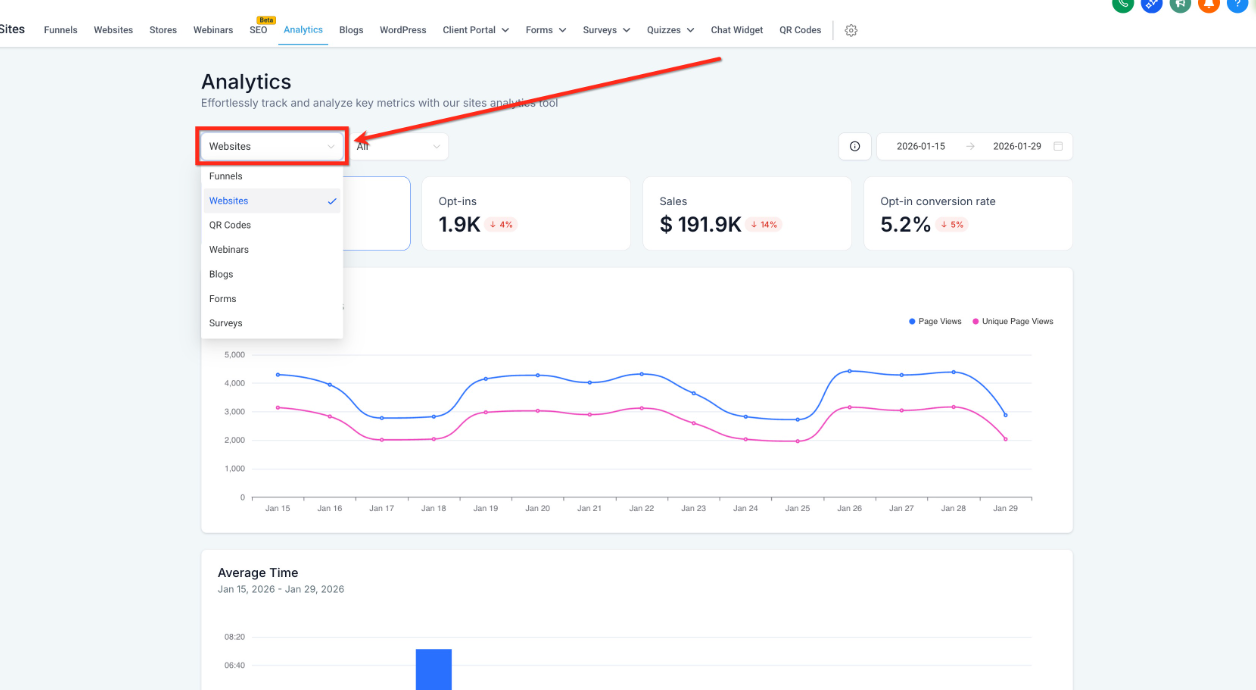
Use the asset type dropdown to select one of the following:
Funnels
Websites
Blogs
Webinars
Forms
Surveys
QR Codes
External Tracking
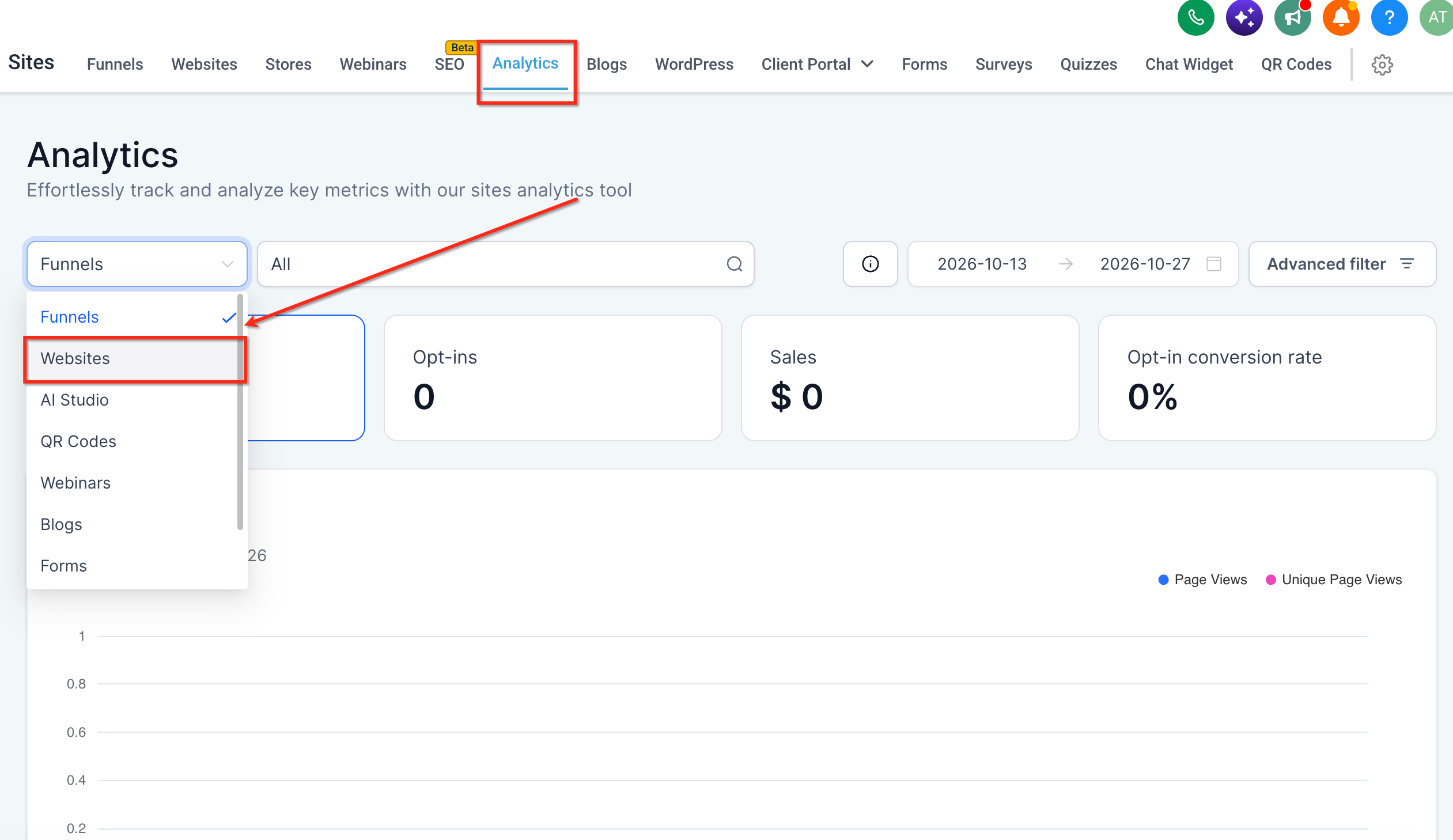
Note: The metrics displayed in the dashboard change based on your selected asset type.
Filter by Date Range and Asset
Use the available filters to focus on specific assets and reporting periods.
Filter by Specific Asset (Optional)
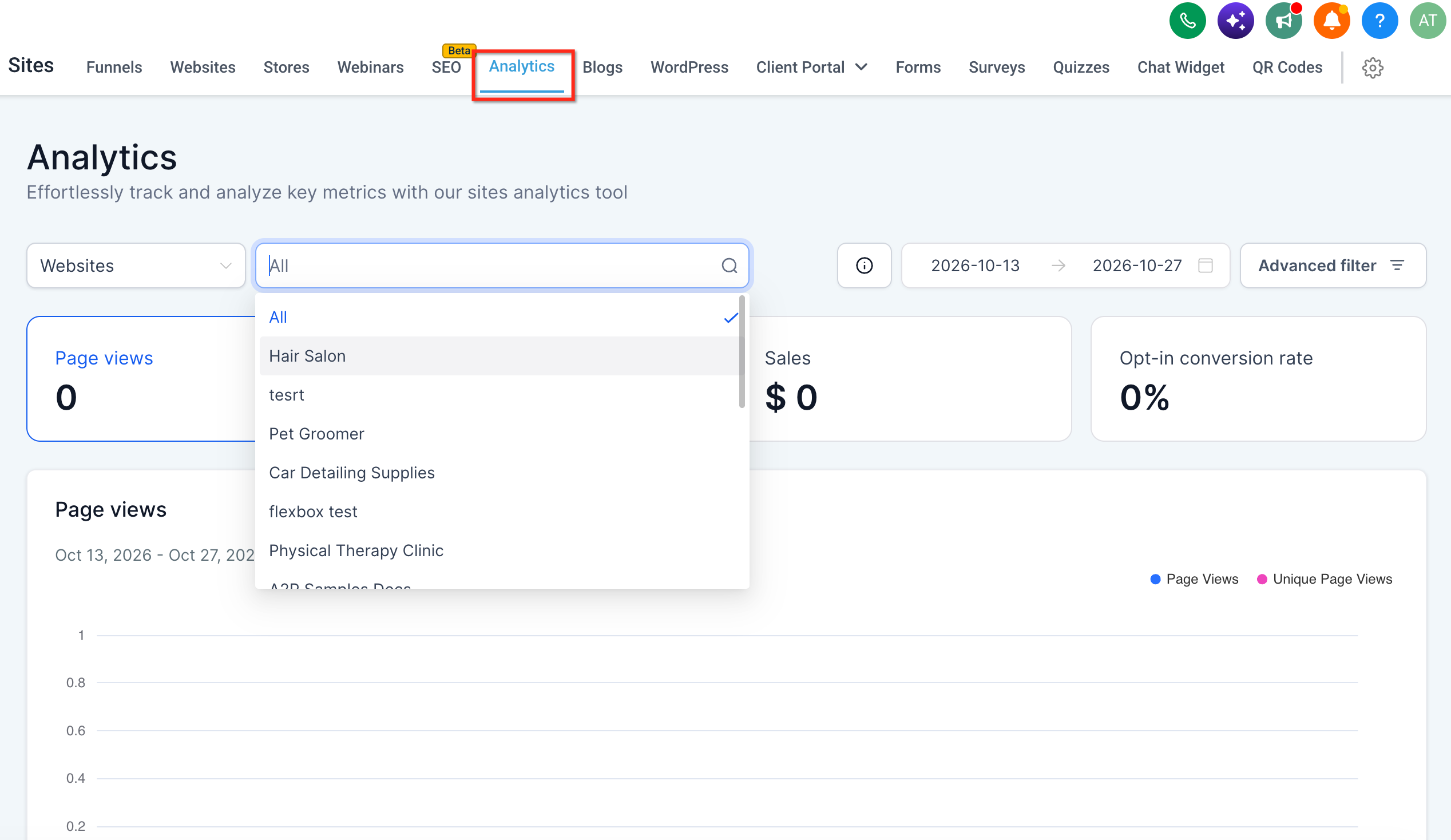
Select a specific asset within the chosen asset type, such as a funnel, website, blog, webinar, form, survey, or QR code.
Leave the asset filter set to All to view combined results for every asset within the selected type.
When you change the asset type, the asset filter resets to All.
Filter by Date Range
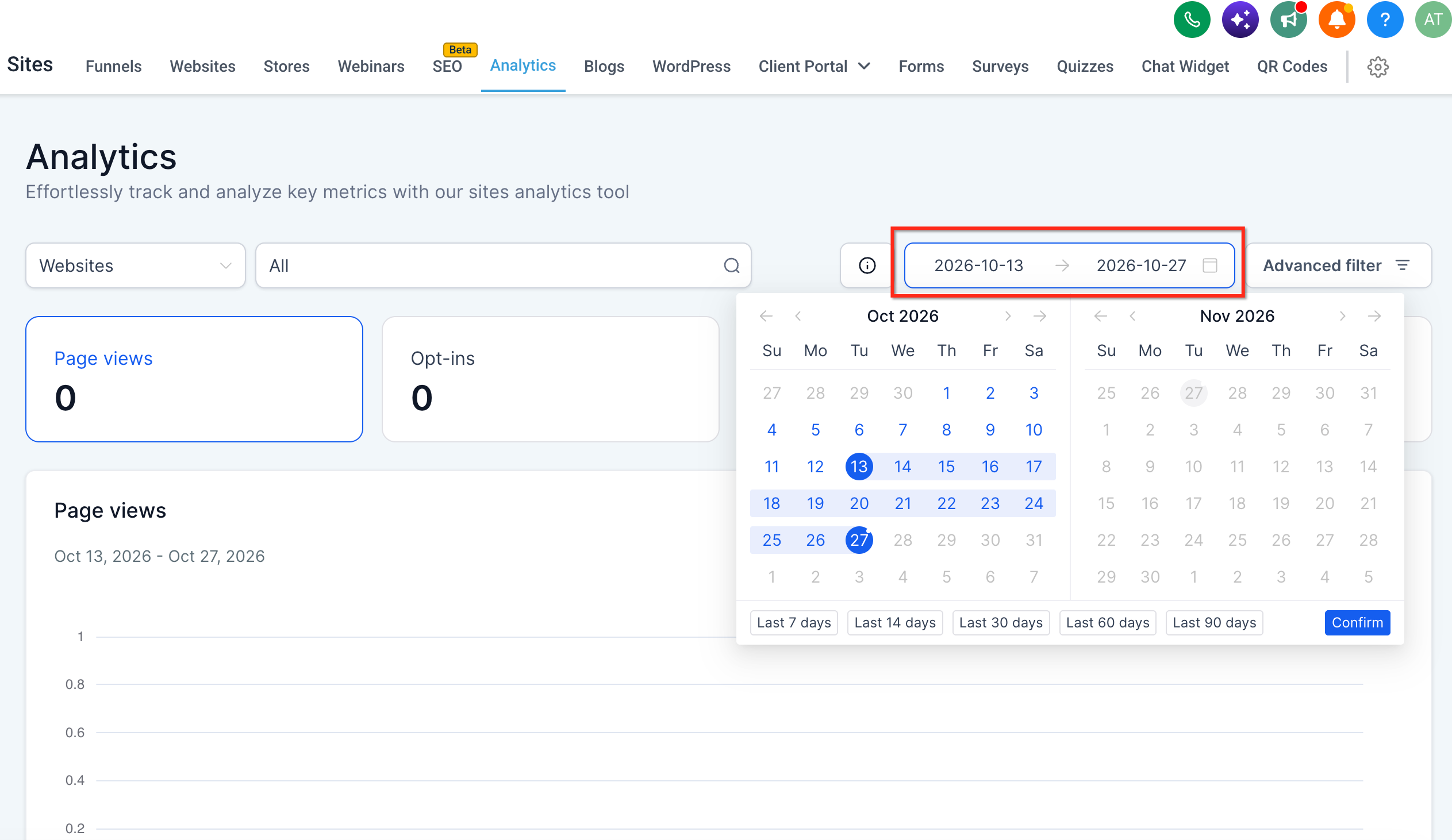
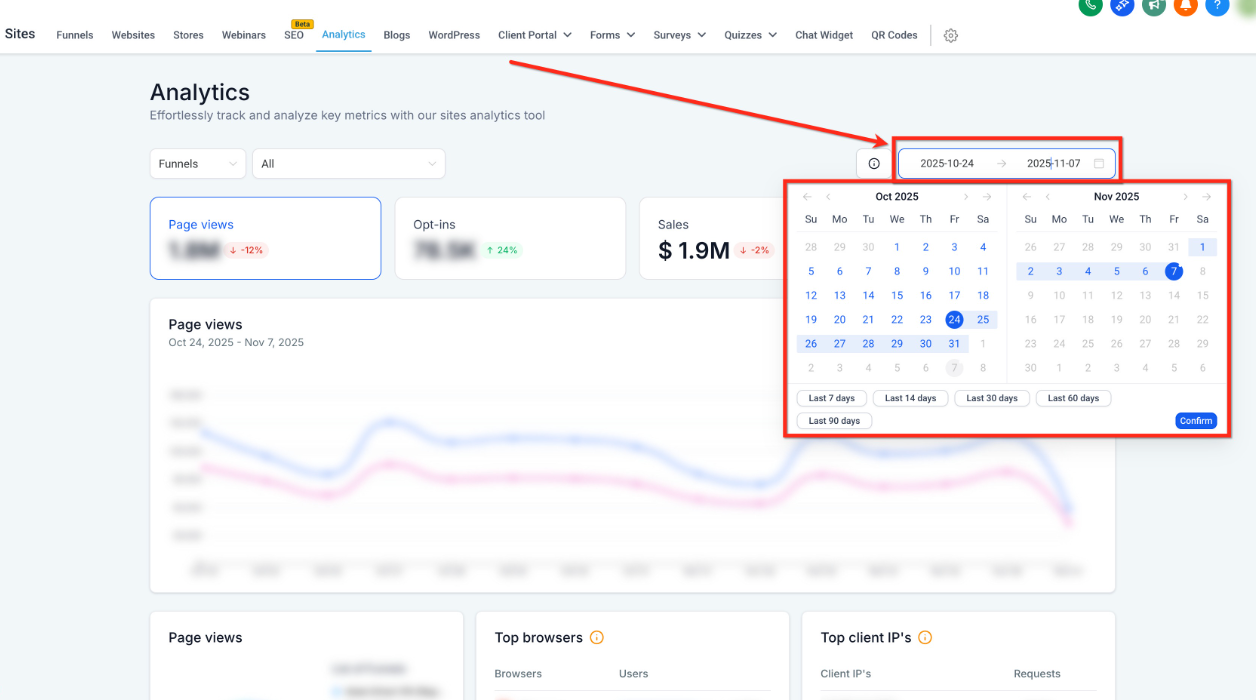
Use the date range picker in the upper-right corner of the dashboard to select the reporting period.
The selected date range controls the data displayed in charts and KPI cards, including page views, opt-ins, sales, and order conversion rates where applicable.
The dashboard compares performance during your selected period with the immediately preceding period of equal length.
The default date range is Last 14 days.
Interactive KPI Cards
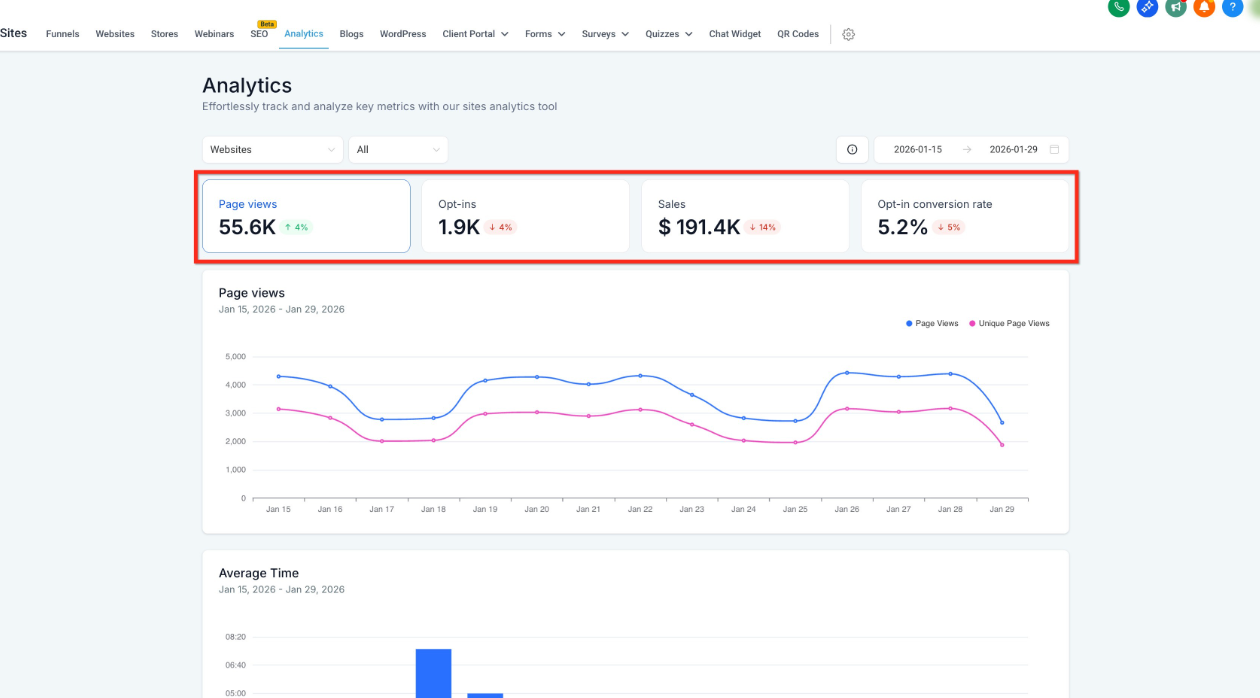
KPI cards function as interactive tabs within the analytics dashboard.
Select a KPI card to update the charts and breakdowns displayed below it. This allows you to explore a specific metric in greater detail.
The number of available KPI cards varies by asset type. Some asset types may display fewer cards or none.
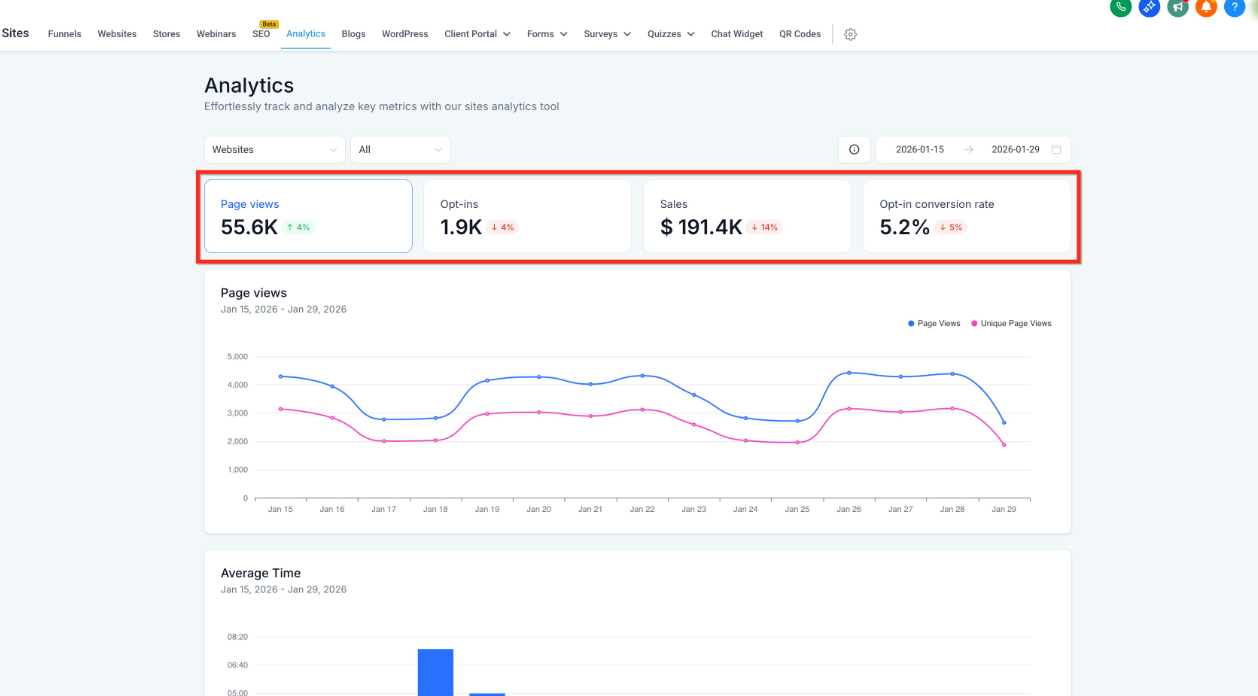
Note: The dashboard charts and metrics change based on your selected KPI card.
How to Use Site Analytics
Follow these steps to review performance data for your online assets.
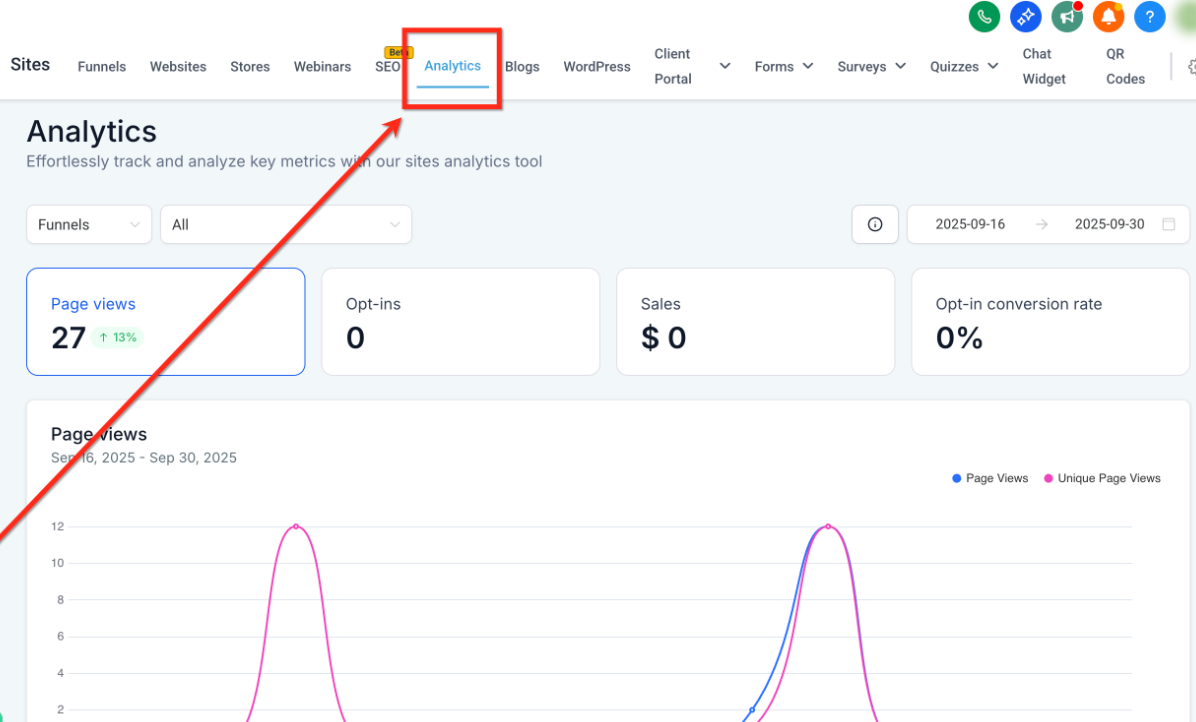
Step 1: Navigate to Analytics
From your dashboard, select Sites in the left navigation menu.
Click the Analytics tab in the top navigation bar.
Step 2: Select Asset Type
Use the dropdown menus to choose an asset type, such as Funnels.
Optionally, select a specific asset to narrow your results.
Step 3: Set Date Range
Use the Date Range picker to select the reporting period you want to analyze.
Step 4: Explore Your Data
Select KPI cards to update the charts and review performance trends.
Explore the available charts and breakdowns to understand visitor activity, engagement, and conversions.
Change the asset type, specific asset, or date range to compare additional performance data.
QR Code Analytics
QR Code Analytics helps you understand how your QR codes perform by displaying scan activity, device types, browsers, and geographic locations.
Use these insights to identify engagement trends and optimize your QR code campaigns.
1. Access QR Code Analytics
Navigate to Sites → Analytics.
Select QR Codes from the asset type dropdown.
Select All to view combined analytics, or choose a specific QR code.
Use the date range picker to select the reporting period.
Review the available scan metrics and reporting charts.
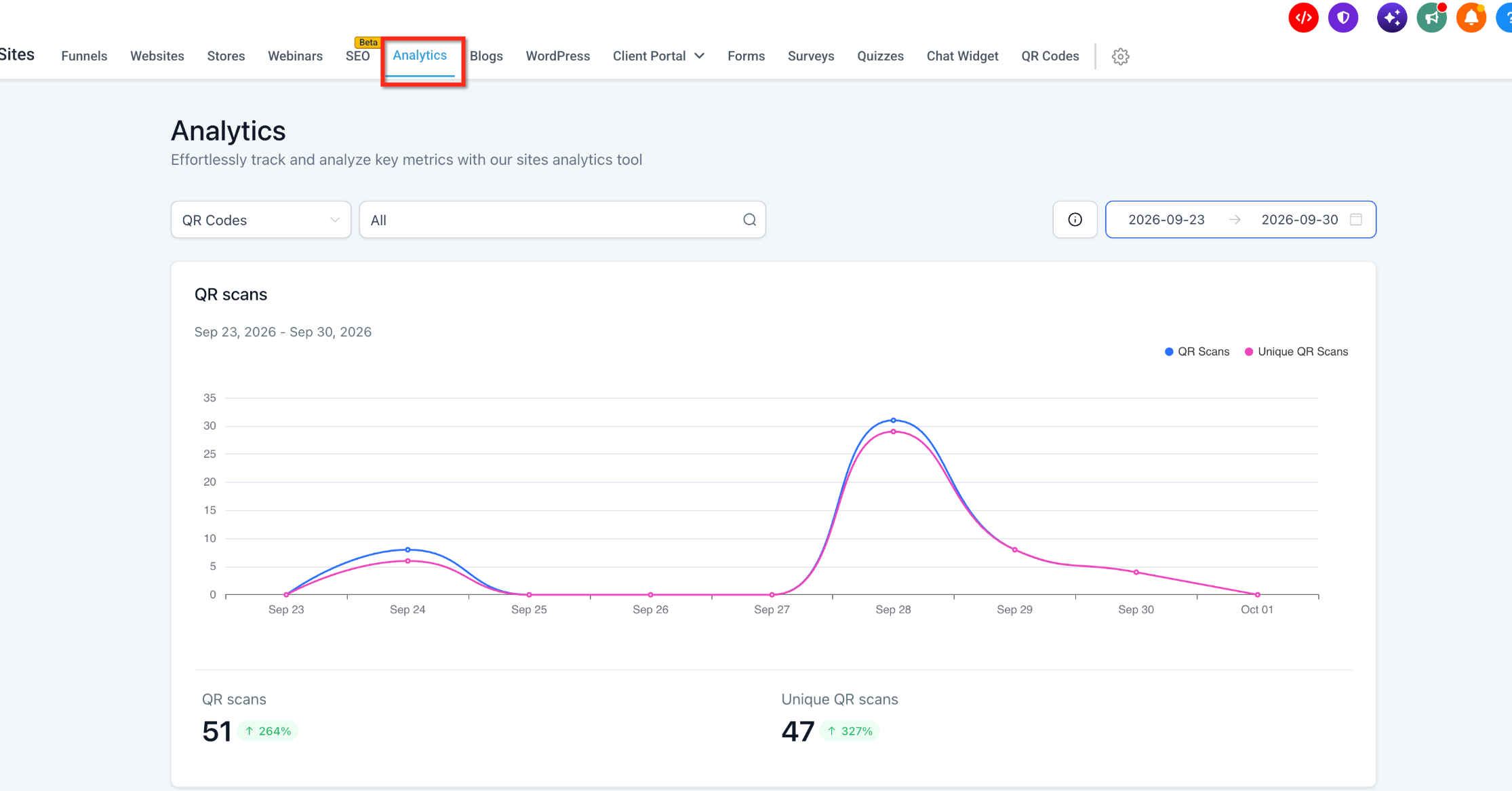
2. Review QR Scans and Unique QR Scans
The dashboard displays two scan metrics:
QR scans: The total number of recorded QR code scans.
Unique QR scans: The number of unique scans recorded during the selected period.
The scan chart displays activity over time, helping you identify changes in QR code engagement.
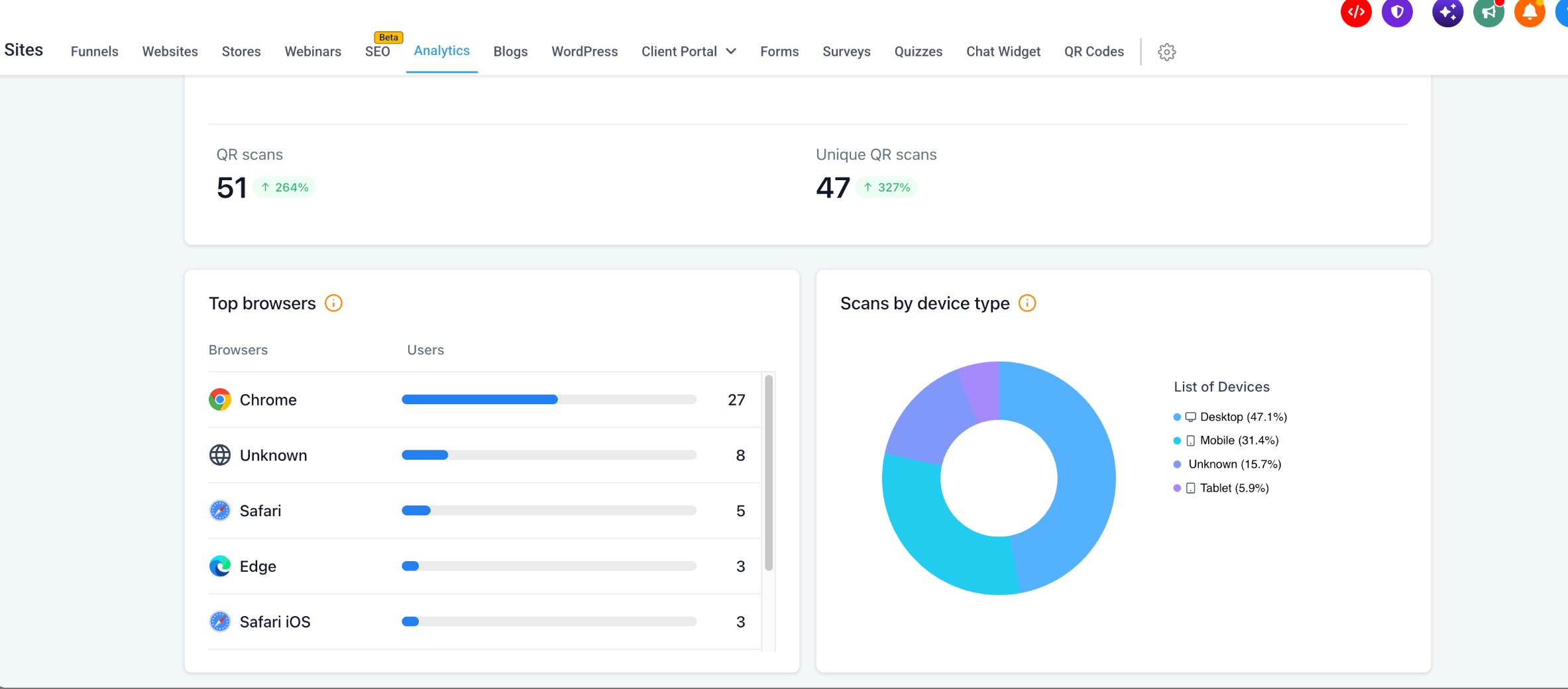
3. Analyze Scans by Device Type
The Scans by device type chart displays the distribution of QR code scans across device categories.
The available device types include:
Desktop
Mobile
Tablet
Unknown
Use these insights to understand which devices visitors use when scanning QR codes.
4. Analyze Top Browsers
The Top browsers section displays the browsers associated with QR code scans.
You can review browser usage information for supported browsers, such as Chrome, Safari, and Edge.
Use this information to identify the browsing environments commonly used to access your QR code destinations.
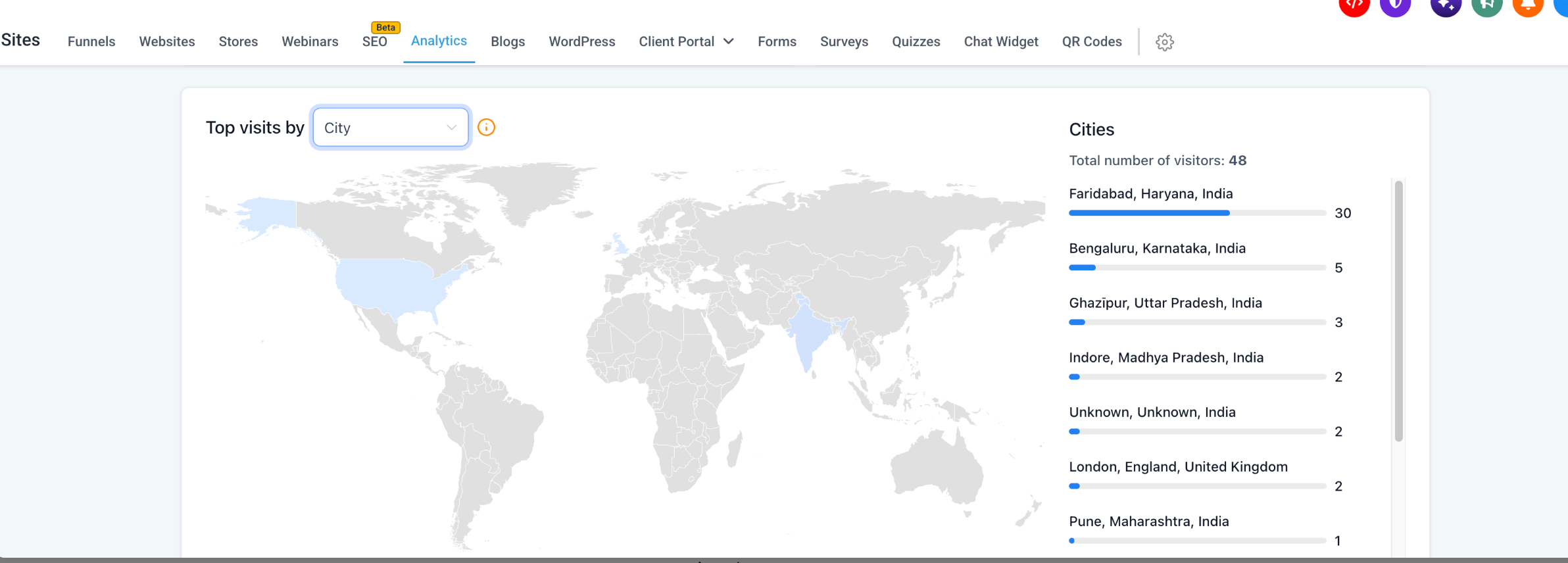
5. View Geographic QR Code Analytics
The geographic analytics section displays a map and location-based visitor information.
Use the Top visits by dropdown to select the geographic breakdown.
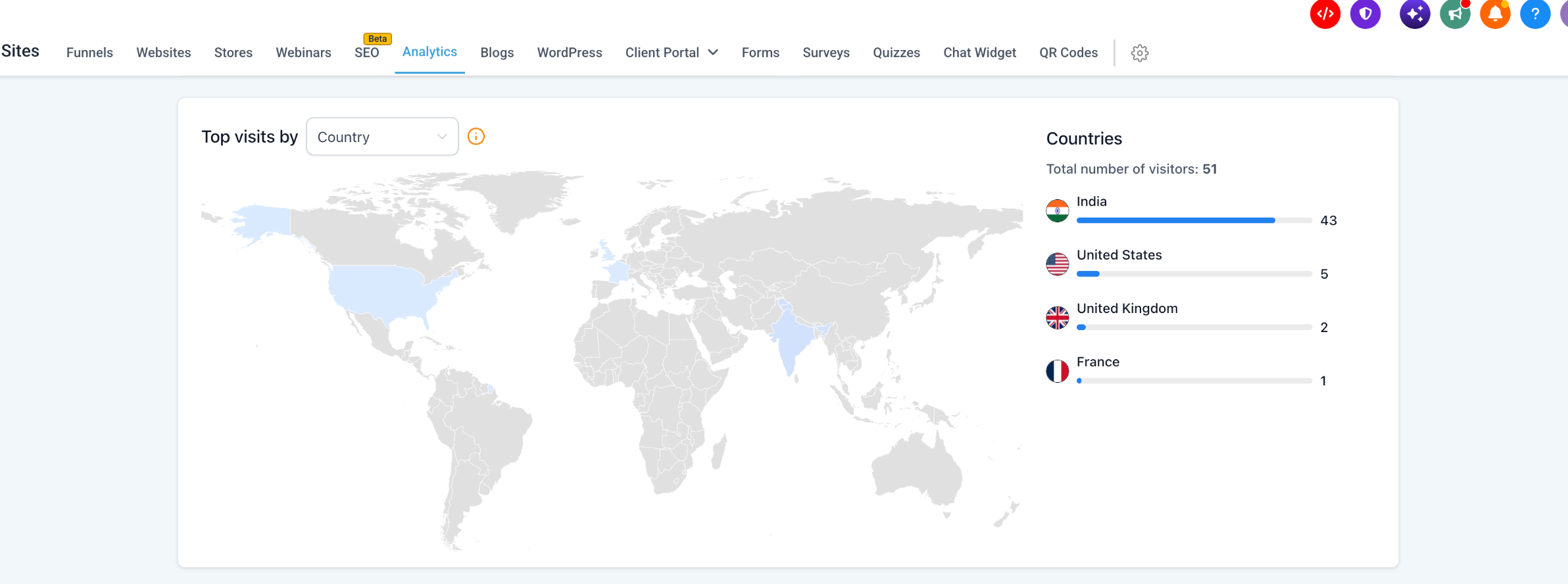
1. Country-Level Analytics
Select Country to view visitor distribution by country.
The Countries panel lists countries and their corresponding visitor counts.
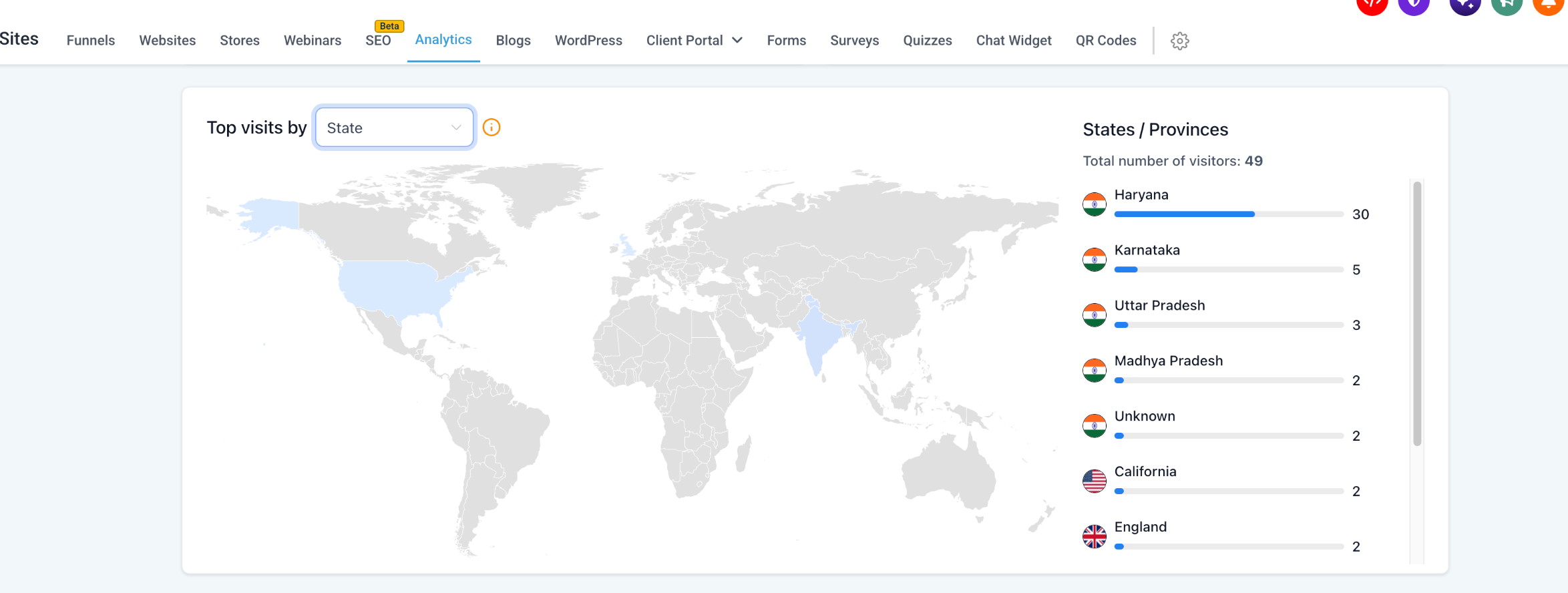
2. State-Level Analytics
Select State to view visitor distribution by state or province.
The States / Provinces panel displays regional visitor counts.
3. City-Level Analytics
Select City to view visitor distribution by city.
The Cities panel lists cities and their corresponding visitor counts.
6. View Historical QR Code Analytics
Advanced QR Code Analytics supports scan data recorded from August 28, 2024, onward.
Select a supported historical date range to review available device, browser, and geographic analytics for existing QR codes.
This allows you to analyze historical scan activity without creating new QR codes.
Frequently Asked Questions
Q: Why don't I see KPI toggles for QR Codes?
QR Codes use a dedicated analytics view instead of standard KPI card toggles. This view includes QR scans, unique QR scans, device types, browsers, and geographic insights by country, state, and city.
Q: How is the previous-period percentage calculated?
The dashboard compares your selected date range with the immediately preceding period of equal length.
For example, if you select the last 14 days, the dashboard compares that period with the previous 14 days.
Q: What affects data availability for External Tracking?
The External Tracking script must be installed and functioning on the external website.
If the script is missing or blocked, page views and submissions may not appear in the analytics dashboard.
Q: Can I see page views for a specific step of a funnel?
Yes. Select an item in the Page Views chart to review step-level performance and engagement metrics.