
Find specific messages in mobile Conversations without scrolling through long chat histories. Search for words, phrases, or numbers across your inbox and jump directly to matching messages. Highlighted results and navigation arrows help you find each occurrence in a conversation. This guide explains how to search messages and contacts, navigate matches, and reuse recent searches.
TABLE OF CONTENTS
- What Is Keyword Search in Mobile Conversations?
- Key Benefits of Keyword Search
- Prerequisites and Limitations
- How to Use Keyword Search
- Frequently Asked Questions
- Related Articles
- Need Help?
What Is Keyword Search in Mobile Conversations?
Keyword Search lets you find contacts and messages directly from the Conversations inbox on your mobile device. Enter a word, phrase, or number to locate matching conversation content without manually scrolling through each message thread.
Search includes supported content from SMS, Email, WhatsApp, Facebook, Instagram, Live Chat, internal comments, and activity records.
You can also find contacts by name, company, email address, or phone number.
When you tap a matching result, the conversation opens at the relevant message. The search term remains highlighted, and navigation arrows let you move between additional occurrences within that conversation.
Key Benefits of Keyword Search
Keyword Search helps you locate important information while working from your phone. Use it to find previous messages, recover customer details, and review conversation history more efficiently.
- Find Messages Faster: Search for addresses, quoted amounts, instructions, dates, or other information mentioned in previous messages.
- Search Contacts and Messages Together: Find contacts using their name, company, email address, or phone number while also searching message content.
- Jump to Exact Matches: Open a conversation at the message containing the matching keyword.
- Navigate Between Matches: Use the up and down arrows to move through matching messages in a conversation.
- Reuse Recent Searches: Access up to five recent searches without entering the same query again.
Prerequisites and Limitations
Review the supported mobile app version and search limitations before using Keyword Search. The search option must be available in your mobile Conversations interface.
Prerequisites
- Mobile App Version: Version 4.27.0 or later, as specified for this feature.
- Conversations Access: You must be able to open the Conversations area in the mobile app.
- Feature Availability: The Search conversations option must be available in the Conversations list.
- Minimum Query Length: Enter at least three characters to search.
Limitations
Mobile keyword search has specific controls and does not include every filtering option available in the desktop Conversations experience.
- Search Entry Point: Start a new keyword search from the mobile Conversations list.
- One Result per Conversation: Each matching conversation appears once in the search results, even when it contains multiple matching messages.
- Mobile Keyword Filters: Dedicated search-result filters for date, channel, contact, direction, owner, and followers are not available in the documented mobile keyword search experience.
- In-Conversation Navigation: You can navigate matching messages after opening a search result, but starting a separate new search from an already open conversation is not part of the documented mobile workflow.
- Recent Search History: Up to five recent queries are saved locally on the device. The history is cleared when you log out.
Note: If Keyword Search does not appear in your mobile Conversations list, confirm your app version and contact support for assistance with feature availability.
How to Use Keyword Search
Use Keyword Search from the mobile Conversations list to locate matching contacts and messages. After opening a result, you can navigate additional matches and return to previous searches.
Step 1: Search Conversations
Start from the Conversations list to search for a word, phrase, number, or contact detail.
- Open the mobile app.
- Tap Conversations.
- Tap Search conversations.
- Enter at least three characters from the word, phrase, or number you want to find.
- Review the matching contacts and conversations.
Search results display available contact information, a communication channel icon, and a message preview. Matching keywords are highlighted to help you identify relevant results.
Each matching conversation appears once in the results, even if the keyword occurs multiple times in its message history.
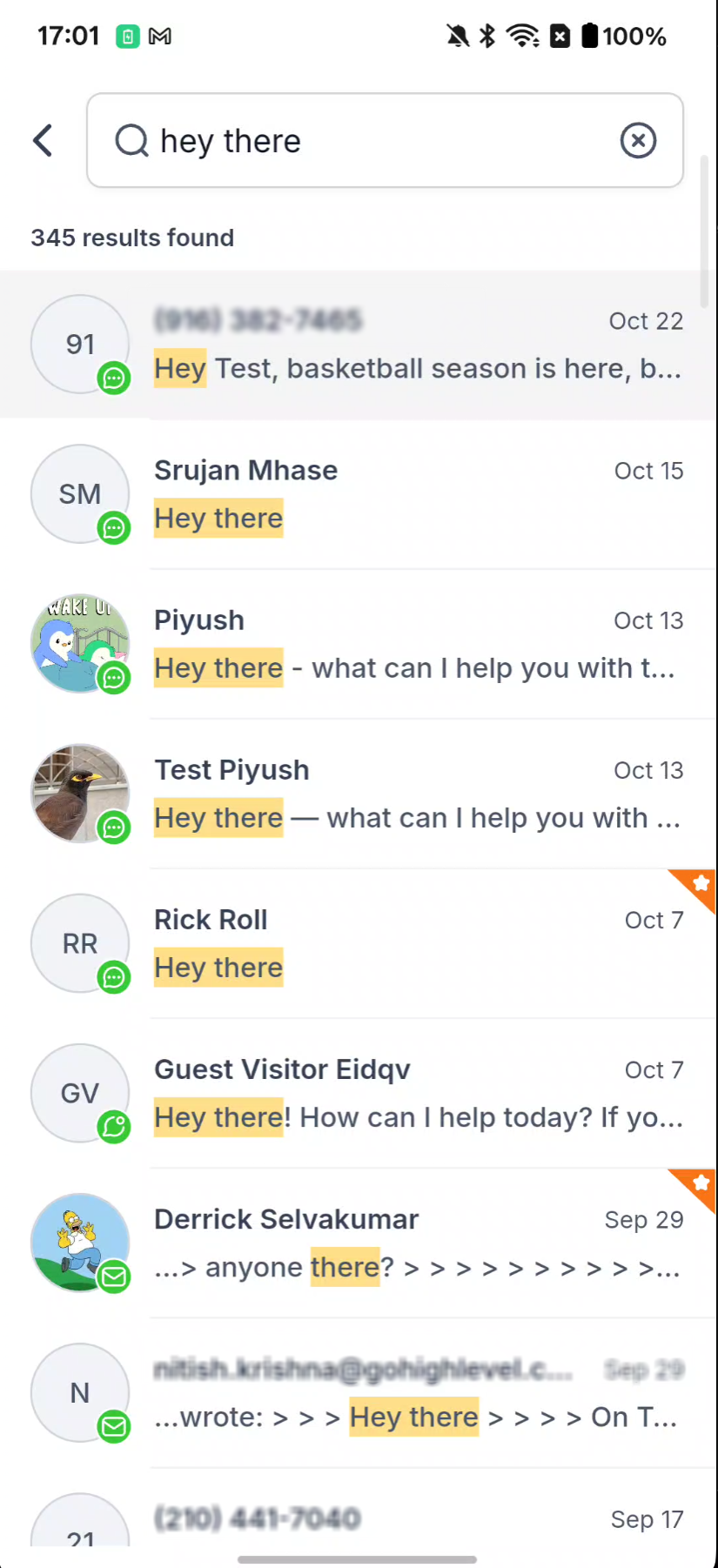
Keyword search results showing highlighted text across multiple conversations.
Step 2: Open a Match and Navigate Results
After locating a matching conversation, open it to review the relevant message. The match counter and navigation arrows help you find other occurrences within the same thread.
- Tap the conversation you want to review from the search results.
- The conversation opens at the matching message, with the keyword highlighted.
- Find the match counter above the message box. For example, 11 of 14 matches indicates your position among the available matches.
- Tap the up arrow or down arrow to move between matching messages.
- Tap X to close the match navigation.
Use the highlighted text and match counter to review each occurrence without scrolling manually through the entire conversation.
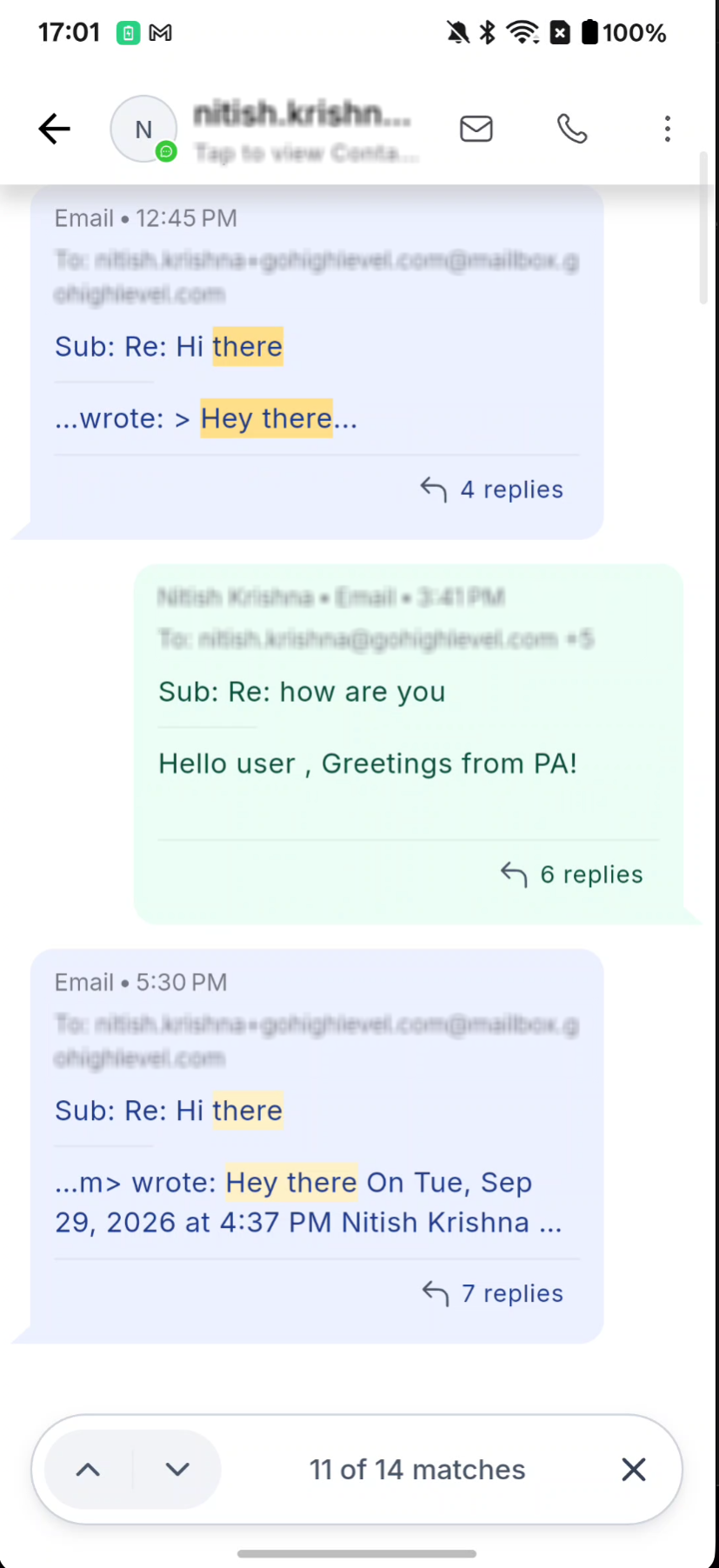
Highlighted keyword matches inside a conversation, with navigation arrows and a match counter.
Step 3: Use Recent Searches
The search screen remembers up to five recent queries on your device. This lets you rerun previous searches without typing the same keywords again.
- Return to the Conversations list.
- Tap Search conversations.
- Review the recent searches displayed on the search screen.
- Tap a recent search to run it again.
Remove Recent Searches
You can manage the locally stored search history directly from the recent searches screen.
- Remove One Search: Tap X beside an individual recent query.
- Clear Search History: Tap Clear all to remove the displayed recent searches.
Important: Recent searches are stored locally on your device. They are not shared automatically across devices and are cleared when you log out.

Recent searches with options to remove individual queries or clear the search history.
Frequently Asked Questions
Q: Can I search using part of a phone number?
Yes. Enter at least three characters from a phone number to find matching contacts and conversations.
Q: Are recent searches shared across my devices?
No. Recent searches are stored locally on the device and are cleared when you log out.
Q: Why don't I see Keyword Search in my mobile app?
Confirm that your mobile app meets the documented minimum version of 4.27.0 and that Search conversations is available in the Conversations list. If the option is missing, contact support.
Q: Can I use desktop Conversations search filters on mobile?
The documented mobile keyword search does not provide the same dedicated filters for date, channel, contact, direction, owner, and followers. The desktop Conversations search experience has its own filtering capabilities.
Q: How many characters do I need to enter before searching?
Enter at least three characters. You can search for words, phrases, numbers, or supported contact information.
Q: What types of conversation content can I search?
Keyword Search supports content from SMS, Email, WhatsApp, Facebook, Instagram, Live Chat, internal comments, and activity records.
Q: Why does a conversation appear only once when the keyword matches multiple messages?
The results list displays each matching conversation once. After opening it, use the match counter and up and down arrows to navigate additional occurrences.
Q: How many recent searches can I reuse?
The search screen retains up to five recent queries on your device. Select a saved query to search again, or remove it with X or Clear all.
Q: Can I start another keyword search while viewing an open conversation?
The documented mobile workflow starts a new keyword search from the Conversations list. You can navigate existing matches within an open conversation.
Need Help?
If mobile keyword search is unavailable or does not return the expected messages, review the supported app version, search entry point, and query length before contacting support.
- Search Option Is Missing: Check your mobile app version and whether Search conversations is available in the Conversations list.
- No Results Appear: Confirm that you entered at least three characters and review the spelling or number you entered.
- Cannot Find an Older Message: Search for another distinctive word, phrase, or number from the conversation.
- Only One Result Appears for a Conversation: Open the conversation and use the match navigation arrows to review additional occurrences.
- Recent Searches Are Missing: Remember that recent searches are stored on the device and cleared after logout.
- Expected Filters Are Missing: The documented mobile keyword search does not provide the same dedicated search-result filters as the desktop experience.
If the issue continues, contact support with your device type, mobile app version, the search term, the expected result, the actual behavior, and any relevant screenshots. Do not include private message content unless necessary for troubleshooting.