
Use Workflows to assign requests, update ticket fields, send replies, record internal notes, and notify your team when something needs attention. Ticket triggers and actions let you build these processes around a specific support request.
TABLE OF CONTENTS
- Open Ticketing automations
- Understand which ticket the workflow uses
- Choose a trigger
- Choose ticket actions
- Build a ticket workflow
- Use conditions and custom values
- Add an existing ticket to a workflow
- Example automations
- Avoid repeated or misdirected actions
- Troubleshooting
- Frequently asked questions
- Related guides
Open Ticketing automations
Go to Tickets → Settings → Automation. The page lists workflows that start from or act on tickets, with their publication state and enrollment information.
Select Create workflow to start a workflow, or open an existing workflow to inspect its trigger and actions. You can also use the standard Automation area to manage workflows.
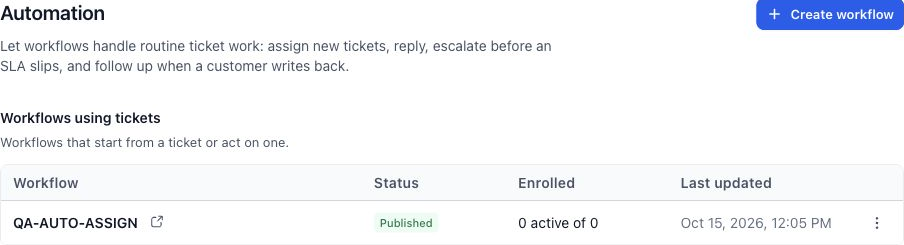
Use the Ticketing Automation page to find the workflows associated with support work.
Understand which ticket the workflow uses
A ticket-triggered workflow carries the ticket that caused the enrollment. Ticket actions and ticket custom values use that request as their context.
For example, a contact with a billing ticket and a technical ticket can enter a workflow for each request. An update should apply to the ticket associated with that enrollment, rather than every ticket belonging to the customer.
Find ticket changes which ticket subsequent ticket actions use. Handle its found and not-found branches deliberately so an update or reply is applied to the intended request.
Choose a trigger
| Trigger | Use it when | Configuration to consider |
|---|---|---|
| Ticket Created | A new request needs assignment, acknowledgment, or routing | Filter by properties such as priority, category, status, assignee, or ticket name. |
| Ticket Updated | A change needs follow-up | Use change conditions such as has changed or has changed to where offered, then filter the resulting ticket state. |
| Customer Replied with Ticket as the reply channel | A customer adds a reply to a ticket | Select the Ticket channel and apply ticket filters as needed. |
| SLA Warning | A service target is approaching its deadline | Choose the applicable target and conditions; align the warning with your SLA configuration. |
| SLA Breached | A service target has been missed | Filter the relevant target or policy and select the escalation action. |
For an update workflow, decide whether you mean “priority is Urgent” or “priority changed to Urgent.” The first describes a state; the second identifies a change. This distinction helps prevent unrelated edits from starting the same process.
The workflow trigger is not a substitute for configuring the underlying SLA policy. Set the policy and its warning behavior first.
Choose ticket actions
Search for ticket in the workflow action picker. The Ticket actions include:
| Action | What it does |
|---|---|
| Create ticket | Creates a new request with the configured fields and contact. |
| Find ticket | Locates a ticket using conditions and provides found/not-found paths. |
| Update ticket | Changes properties on the ticket in context. |
| Assign ticket | Routes the ticket to the selected users using the action's assignment options. |
| Add internal note to ticket | Records team-only information on the ticket. |
| Send email reply to ticket | Sends a customer-facing reply associated with the ticket's email thread. |
Use the ticket-specific email reply action when the message should be a reply on the ticket. Review the source mailbox, recipient context, and custom values before publishing an automation that sends email.
Build a ticket workflow
- Open Settings → Automation → Create workflow.
- Give the workflow a name that describes its outcome, such as Assign new billing tickets.
- Add the appropriate ticket trigger and its filters.
- Add a ticket action, notification, or condition from the action picker.
- Configure the action fields and use the custom-value picker where values should come from the ticket or contact.
- Review the branches, contact context, and ticket context.
- Save and test with a controlled example. Check the workflow's execution history and the resulting ticket.
- Publish when the workflow produces the intended result.
For workflows that begin outside Ticketing, establish the intended ticket with Find ticket before updating it, or create a ticket when the process is meant to open a new request.
Use conditions and custom values
Use If/Else to choose different paths based on ticket properties. For example, Billing requests can go to one group and Technical Support requests to another.
Use the custom-value picker to insert available ticket fields into replies and notifications, such as the ticket name, ID, priority, or link. Select values from the picker rather than typing an assumed variable name.
Check the not found branch of Find ticket. For example, a process can create a new request when none is found, while updating the found ticket when one already exists. If multiple matches are possible, choose the supported matching preference, such as the most recently created ticket.
Add an existing ticket to a workflow
From a ticket
- Open the ticket.
- Open Ticket actions in the top panel.
- Select Add to workflow.
- Search for and select the intended published workflow or workflows.
- Review the selection and select Add.
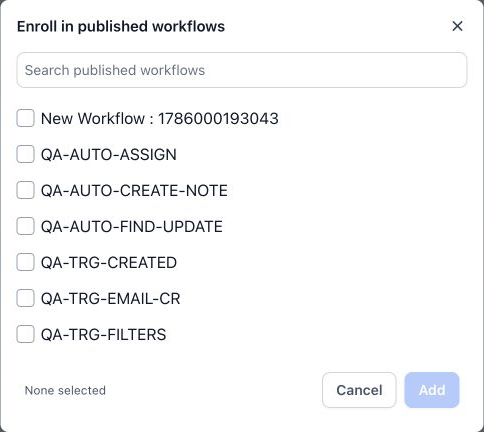
The enrollment picker lists published workflows. Review the destination before adding a ticket.
From the list page
Select the relevant tickets using their checkboxes, then choose Add to workflow from the bulk toolbar. Review the selected ticket count and chosen workflows before confirming.
Each selected ticket supplies its own ticket context. Review the workflow's re-entry settings and execution records when the same customer has multiple requests.
Example automations
| Goal | Suggested workflow |
|---|---|
| Assign new billing requests | Ticket Created, Category is Billing → Assign ticket. |
| Highlight urgent work | Ticket Created, Priority is Urgent → Send internal notification with ticket details. |
| Alert an agent to a customer reply | Customer Replied, channel Ticket → Notify the appropriate assignee or team. |
| Escalate a missed commitment | SLA Breached → Notify the manager with the ticket name, priority, and link. |
| Record an operational handoff | Ticket Updated, relevant status change → Add internal note to ticket and assign the next owner. |
These are examples to configure for your team. Choose real recipients, matching conditions, and service commitments before publishing.
Avoid repeated or misdirected actions
Use narrow trigger filters and check the ticket's current state before sending an escalation or customer reply. The documented workflow model suppresses Ticket Updated triggers caused by workflow updates to help avoid loops; do not rely on repeated updates as a substitute for explicit workflow logic.
An SLA warning or breach is an event. A later status change does not necessarily remove an existing workflow enrollment. Use conditions to decide whether a later action still applies, especially before sending a follow-up after time has passed.
Troubleshooting
| Issue | What to check |
|---|---|
| A workflow is missing from Add to workflow | Confirm that it is published and belongs to the intended sub-account. |
| A ticket event does not start the workflow | Check publication state, trigger filters, event type, and enrollment/re-entry settings. |
| An action affects an unexpected ticket | Review the triggering ticket and whether Find ticket changed the context. |
| Create ticket is skipped | Check that the enrollment has the required contact and review execution-log details. |
| A reply is not sent | Check the email integration, ticket context, recipient, required action inputs, and execution result. |
| An SLA notification is missing | Check the policy, target, warning/breach event, and notification action together. |
Frequently asked questions
Do I need a separate Ticketing automation engine?
No. Ticketing automation uses Workflows.
Can I start a workflow for an existing ticket?
Yes. Use Add to workflow from the ticket or from a selection on the list page.
Can one customer's tickets be handled differently?
Yes. Use each ticket's properties and enrollment context to route and handle the request separately.
Does an internal-note action email the customer?
No. Use the ticket email reply action when the workflow should send a customer-facing response.
Related guides
- Configure SLAs and Business Hours
- Manage Tickets from the List Page
- Work with the Ticket Details Page