
Use AI to catch up on a ticket, prepare a suggested reply, or improve wording you have already written. Connect your knowledge bases so suggested replies can use your support articles.
This guide covers ticket summaries, suggested replies, Polish my reply, and Knowledge base settings. Review generated content before using it in a customer response.
TABLE OF CONTENTS
- Choose the right AI tool
- Generate a ticket summary
- Generate and review a suggested reply
- Polish an existing reply
- Connect knowledge bases
- Keep the knowledge content useful
- Example workflow for an agent
- Troubleshooting
- Frequently asked questions
- Related guides
Choose the right AI tool
| Tool | When to use it | Where to find it |
|---|---|---|
| Summarize with AI | You need a shorter account of the request, work already done, and what is pending. | Ticket top panel. |
| Suggest reply | You want a proposed response based on the ticket and available support context. | The reply editor's AI controls; use More AI options when shown. |
| Polish my reply | You already have a draft and want help improving its wording. | Reply editor. |
| Knowledge base | You want suggested replies to use selected knowledge bases. | Tickets → Settings → Knowledge base. |
Available controls depend on the ticket state, configuration, and whether enough context is present. For example, an editor with an existing draft can show Polish my reply as the main AI action and Suggest reply in its adjacent menu.
Generate a ticket summary
- Open the ticket you want to review.
- Select Summarize with AI in the top panel.
- Read the summary card shown in the ticket's main area.
- Compare the summary with the relevant messages before making a decision.
- Use Regenerate when you need a refreshed summary, or dismiss the card when finished.
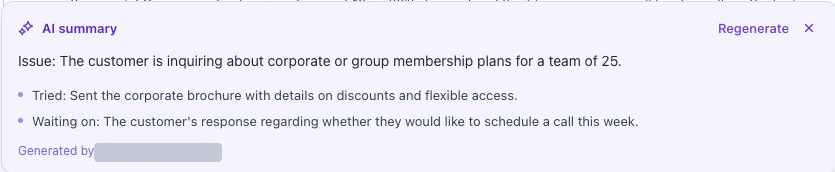
The summary helps an agent catch up; the original ticket messages remain the source for full context.
The summary can identify the customer's issue, what has been tried, and what the ticket is waiting on. If the history is too short or the tool cannot generate a useful result, review the ticket directly and try again when more context is available.
Generate and review a suggested reply
- Open the ticket and review its latest customer message.
- Use the public reply editor.
- Select Suggest reply. If Polish my reply is the main control, open More AI options to find Suggest reply.
- Wait for the suggested-reply card to finish generating.
- Read the proposed response and check names, facts, instructions, and any commitments it makes.
- Select Insert into reply if you want to use it, Regenerate for another suggestion, or Dismiss to discard it.
- Review and edit the content in the reply editor, then use Send reply when it is ready.
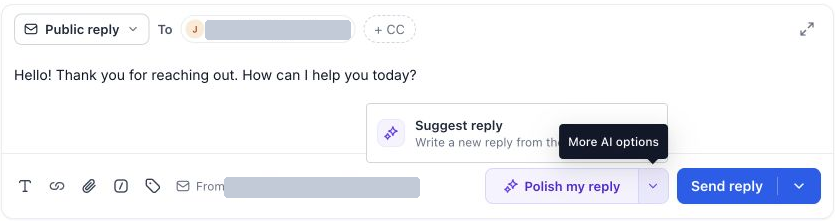
Use Suggest reply when you need a proposed response, and Polish my reply when you already have wording to improve.
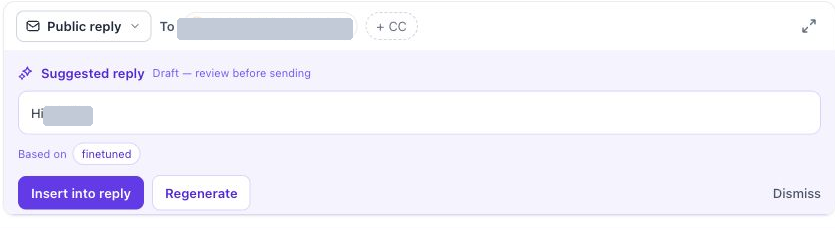
The generated text is marked Draft — review before sending. Inserting and sending are separate actions.
If the editor already contains text, inspect the whole reply after insertion so it reads as one response and does not repeat a greeting or instruction. Review any source information shown on the card, and confirm the underlying material when the answer depends on it.
Polish an existing reply
Write your response in the editor, then select Polish my reply. Review the proposed wording or updated draft before sending it.
Check that the revision preserves your intended meaning, dates, prices, instructions, and promised next steps. Wording assistance does not verify the business facts in the response.
Connect knowledge bases
An administrator can select the support content Ticketing AI should use.
- Open Tickets → Settings → Knowledge base.
- Select Connect a knowledge base.
- Search for and select the relevant existing knowledge bases.
- Confirm the connection.
- Review the Connected knowledge bases list.
- Turn on AI suggested replies and enable the individual bases you want used for replies.
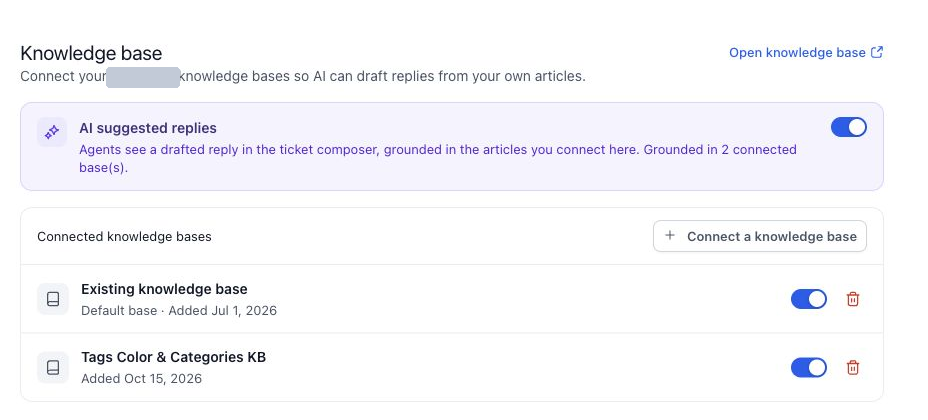
Connect relevant knowledge bases and enable the ones that should supply support content.
The connection picker identifies bases that are already connected. Use Open knowledge base to manage the underlying content in the Knowledge Base area.
Keep the knowledge content useful
Choose bases that apply to the product, service, and customers this support team handles. Keep policies and instructions current so generated drafts are based on the right information.
- Enable or disable an individual base to control whether it is used for suggested replies.
- Disconnect a base when it should no longer be connected to Ticketing.
- Update the source content in the Knowledge Base area when an instruction or policy changes.
- Review the draft even when a relevant knowledge base is connected; the answer must still fit the specific request.
Connecting a knowledge base does not send messages to customers. The agent still reviews and sends a public reply from the ticket.
Example workflow for an agent
A teammate hands you a ticket with several messages. Use Summarize with AI to understand the issue, then read the latest exchange to confirm the current question.
Generate a suggested reply using the available ticket and knowledge-base context. Insert the useful content, add the specific next step you can commit to, check the recipients, and send the reviewed response. Use an internal note for any team-only handoff information.
Troubleshooting
| Issue | What to check |
|---|---|
| Suggest reply is not the main button | Open More AI options. Existing text can make Polish my reply the primary action. |
| Suggested replies are unavailable | Check the AI suggested replies setting and whether you are using the public reply editor. |
| A knowledge base is missing from the connected list | Use Connect a knowledge base and confirm that the expected base is available in this sub-account. |
| A base is connected but should not be used | Check its individual switch or disconnect it from Ticketing. |
| A summary misses recent context | Review the latest messages and regenerate; do not rely on a summary without checking what happened afterward. |
| A draft gives an incorrect or incomplete answer | Edit or discard it, check the source content, and verify the relevant facts before sending. |
| Generation fails | Review the displayed error and try again. You can continue writing a response manually. |
Frequently asked questions
Does AI automatically send the suggested reply?
No. Review the draft, insert the content you want to use, and send the reply separately.
What is the difference between a summary and a suggested reply?
A summary helps the agent understand the ticket. A suggested reply is proposed customer-facing wording.
Can I connect more than one knowledge base?
Yes. The settings page supports multiple connected bases with individual enable switches.
Will connecting a knowledge base guarantee the answer is correct?
No. It provides relevant support content, but the agent should still verify the proposed answer against the request and source material.
Is autonomous ticket resolution covered here?
This guide covers summaries and agent-reviewed reply assistance. It does not describe an autonomous resolution feature.
Related guides
- Work with the Ticket Details Page
- Set Up and Configure Ticketing
- Automate Ticketing with Workflows