
The Conversation SLA workflow trigger helps teams automate responses to conversation response-time targets. Workflows can start when an SLA is Due Soon, Overdue, or manually dismissed. Use this trigger to notify team members, escalate conversations, and automate follow-up actions without continuously monitoring SLA timers.
TABLE OF CONTENTS
- What Is the Conversation SLA Workflow Trigger?
- Key Benefits
- How to Set Up the Conversation SLA Trigger
- Available Trigger Filters
- Avoid Repeated Triggers
- Common Use Cases
What Is the Conversation SLA Workflow Trigger?
The Conversation SLA trigger starts a workflow when a conversation meets a selected SLA event condition. You can configure workflows to respond to three events:
| SLA Event | Description |
|---|---|
| Due Soon | Starts the workflow when a conversation approaches its SLA deadline. |
| Overdue | Starts the workflow when a conversation passes its SLA deadline. |
| SLA dismissed | Starts the workflow when a user manually dismisses an SLA. |
Key Benefits
Proactive SLA monitoring: Automatically take action when conversations approach or pass their response deadlines.
Automated escalation: Notify users or reassign contacts based on SLA events.
Less manual monitoring: Use workflow automation to manage time-sensitive conversations.
Repeated-trigger prevention: Prevent the workflow from running more than once per conversation within 24 hours.
Dismissal-based automation: Trigger follow-up actions when users manually dismiss SLAs.
How to Set Up the Conversation SLA Trigger
Follow these steps to configure a workflow using the Conversation SLA trigger.
Navigate to Automation → Workflows.
Create a new workflow.
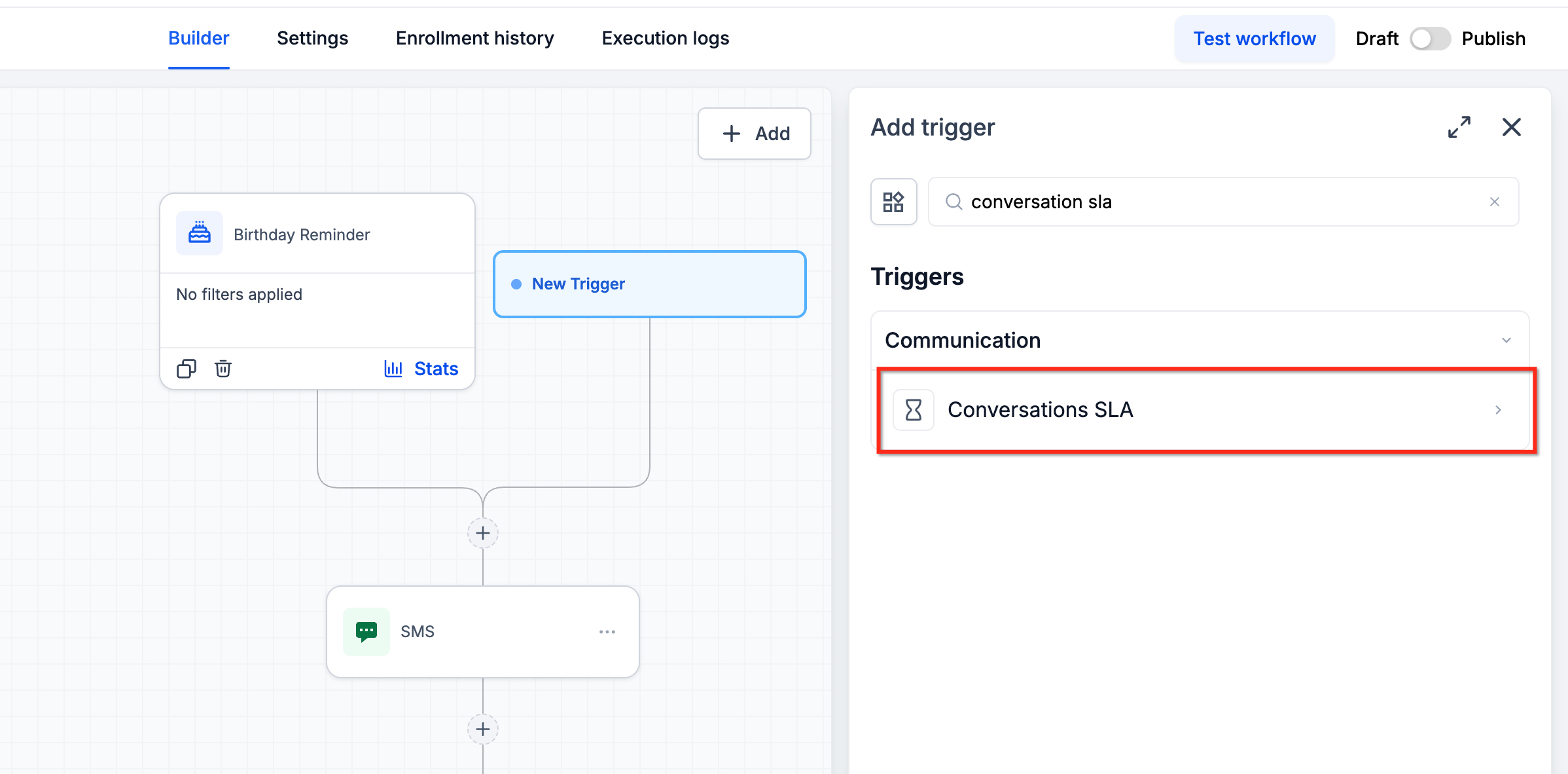
Add a workflow trigger and select Conversation SLA.
Select the SLA event that starts the workflow:
Due Soon
Overdue
SLA dismissed
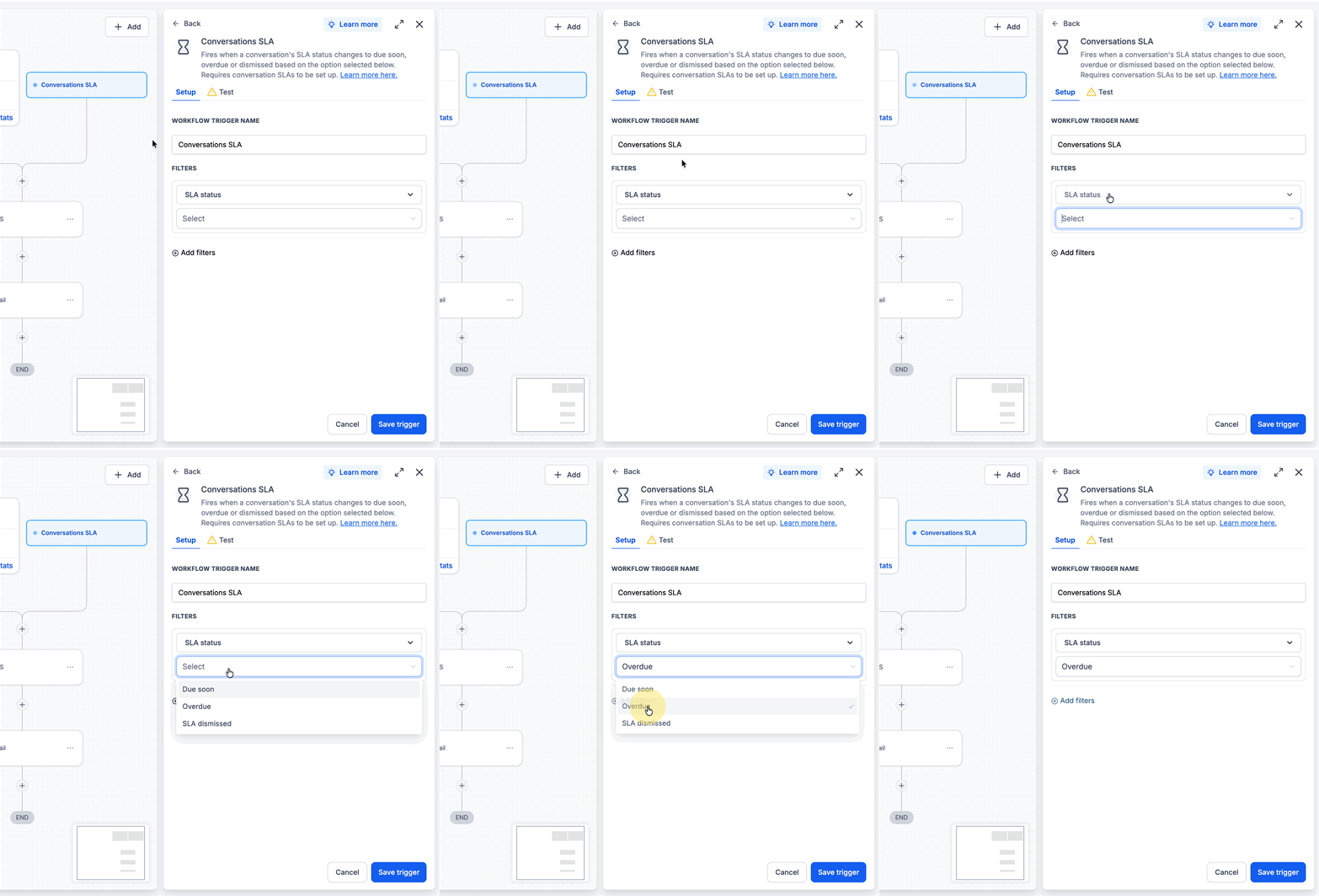
Optionally, configure filters to specify which conversations qualify for the workflow.
Add the workflow actions you want to execute.
Publish the workflow.
Once published, the workflow starts when the selected SLA event occurs and the configured filter conditions are satisfied.
Available Trigger Filters
You can use optional filters to control which conversations activate the Conversation SLA workflow. Supported filter categories include:
Message channel: Filter conversations by communication channel.
Tags: Limit execution based on assigned tags.
Owner: Filter based on the assigned owner.
Custom fields: Apply conditions using custom field values.
These filters help ensure workflows run only for conversations that match your selected criteria.
Avoid Repeated Triggers
The Avoid Repeated Triggers option prevents repeated workflow executions when additional messages generate multiple SLA events. When this option is enabled, the workflow runs only once per conversation within a 24-hour period, even if additional messages from the same contact generate more SLA events. This setting is especially useful for workflows that send notifications or escalate conversations, as it helps prevent repeated actions.
Common Use Cases
Notify a User When an SLA Becomes Overdue
Use the Overdue event to start a workflow when a conversation passes its configured response deadline. Add a notification action to alert the appropriate user so they can review the overdue conversation.
Escalate Conversations Approaching Their SLA Deadline
Use the Due Soon event to start an escalation workflow before the conversation becomes overdue. For example, configure an action to reassign the contact when the conversation approaches its response deadline.
Automate Actions After Manual SLA Dismissal
Use the SLA dismissed event to start a workflow when an authorized user manually dismisses a conversation SLA. Configure the workflow actions you want to perform after the dismissal event.