
The Conversation left panel is a new addition to the Conversations UI, which helps users filter conversations & perform various actions on them.
Features:
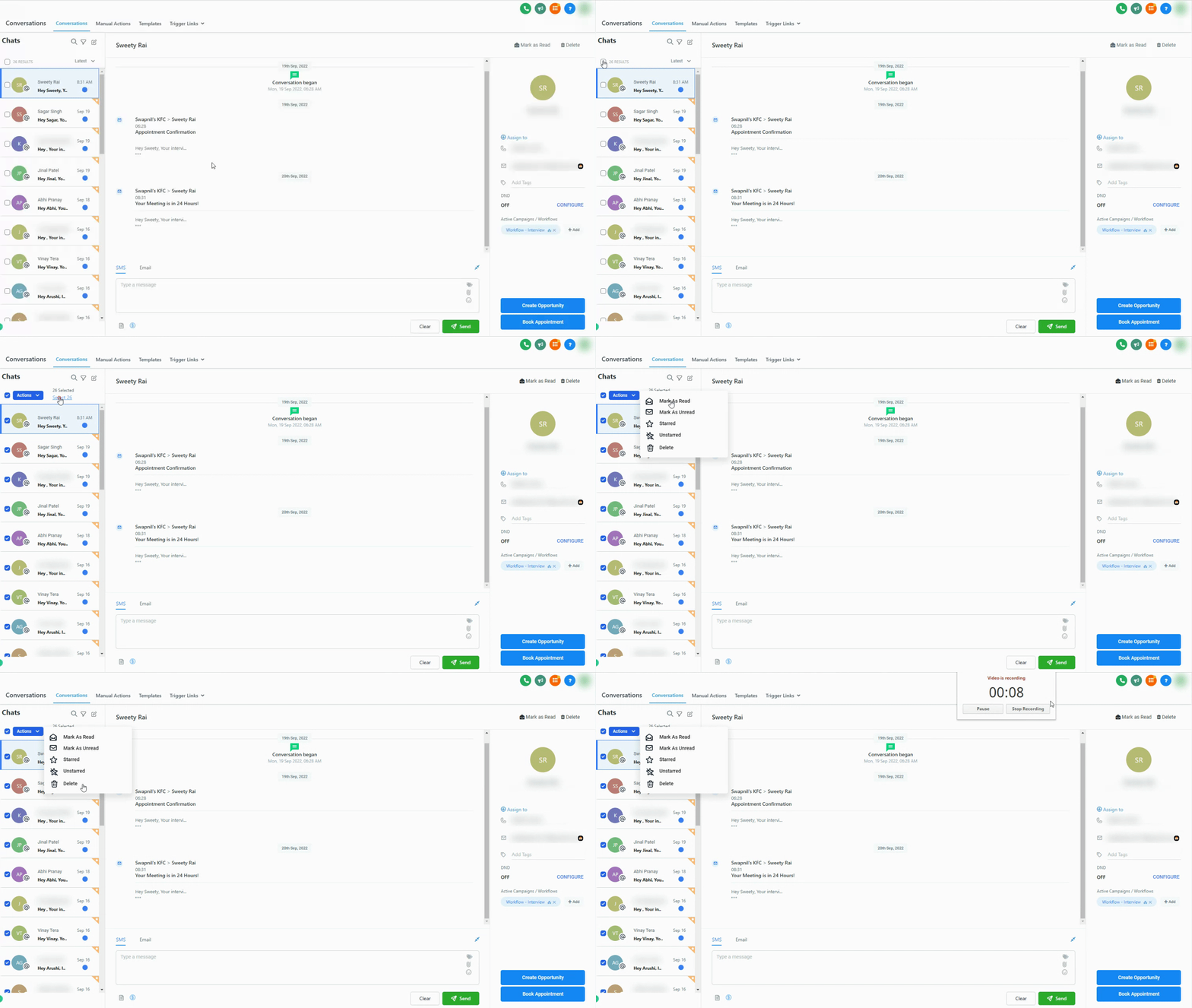
Bulk actions (limited to 100 conversations at a time)
You can perform Conversation specific Bulk Actions to handle multiple conversations at a time, You can perform the following Conversation Bulk Actions:
- Mark conversations as Read: All conversations will be marked as read
- Mark conversations as Unread: All conversations will be marked as unread
- Mark conversations as Starred: All conversations will be marked as starred
- Mark conversations as Unstarred: All conversations will be marked as unstarred
- Delete conversations: Conversations will be deleted
Filter conversations (quick filters)
You can filter Conversations based on a few filters, allowing you to narrow down your Conversations View to something you need now.
The following filters are available:
- By conversation type
- By assignee
- By last message channel: Filter the conversations whose last message was from the selected channel.
- By last message type: Filter the conversations whose last message (outbound) was from the selected type.
- By last message direction: Filter the conversations whose last message direction was from the selected type.
- By last outbound message type.
- By the last outbound message action: Manual or Automated (This filter applies to messages post 9th May 2023)

Sort conversations
You can sort your Conversations on the basis of time. It helps in going through your conversations more easily.
You can sort it as follows:
- Latest to oldest
- Oldest to latest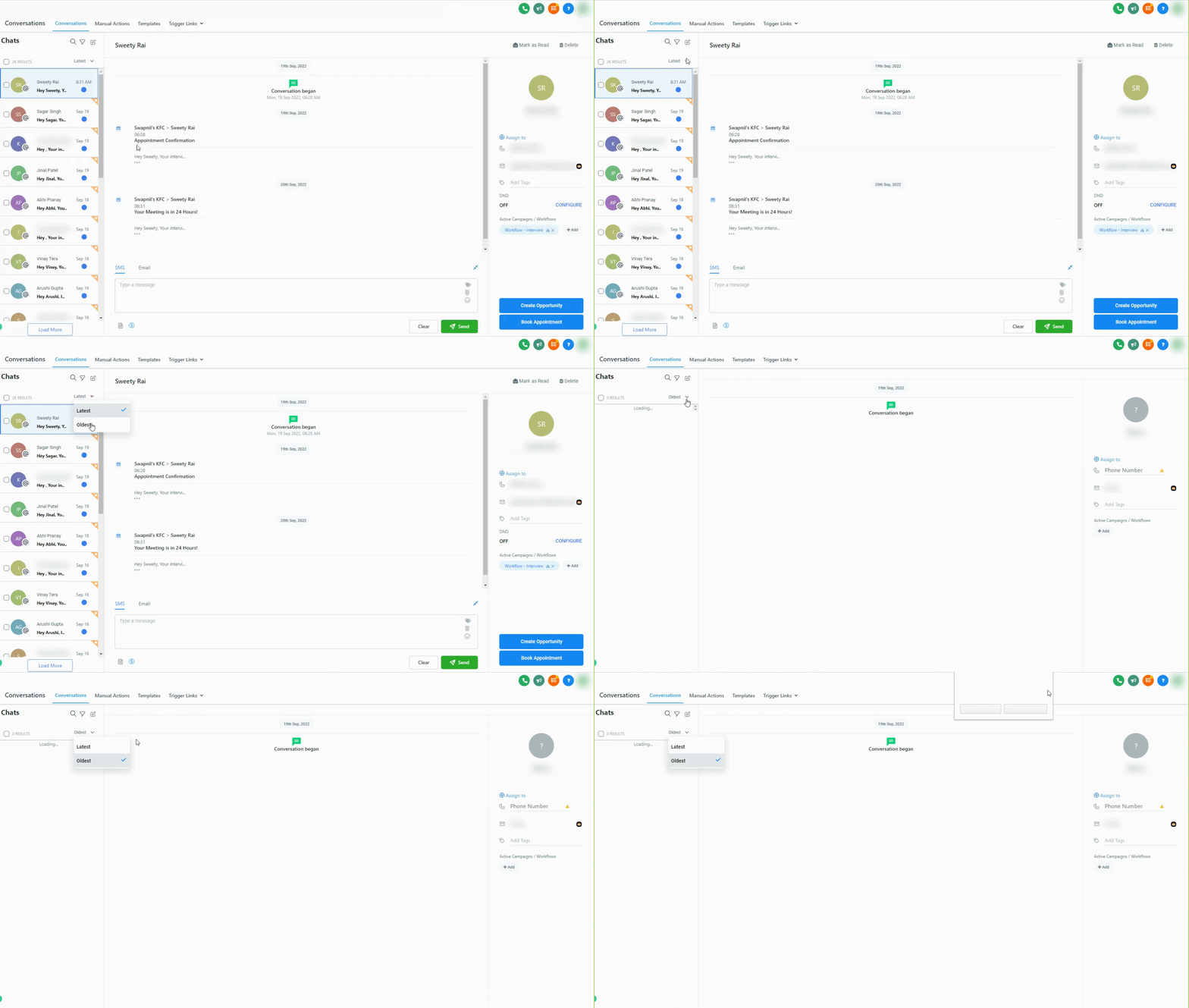
Please Note
This will also work in combination with the Quick filters mentioned above to make Conversations more structured.So, in essence if you have filters applied and sort based on oldest or latest the system will also account the filters you have selected

Starred functionality:
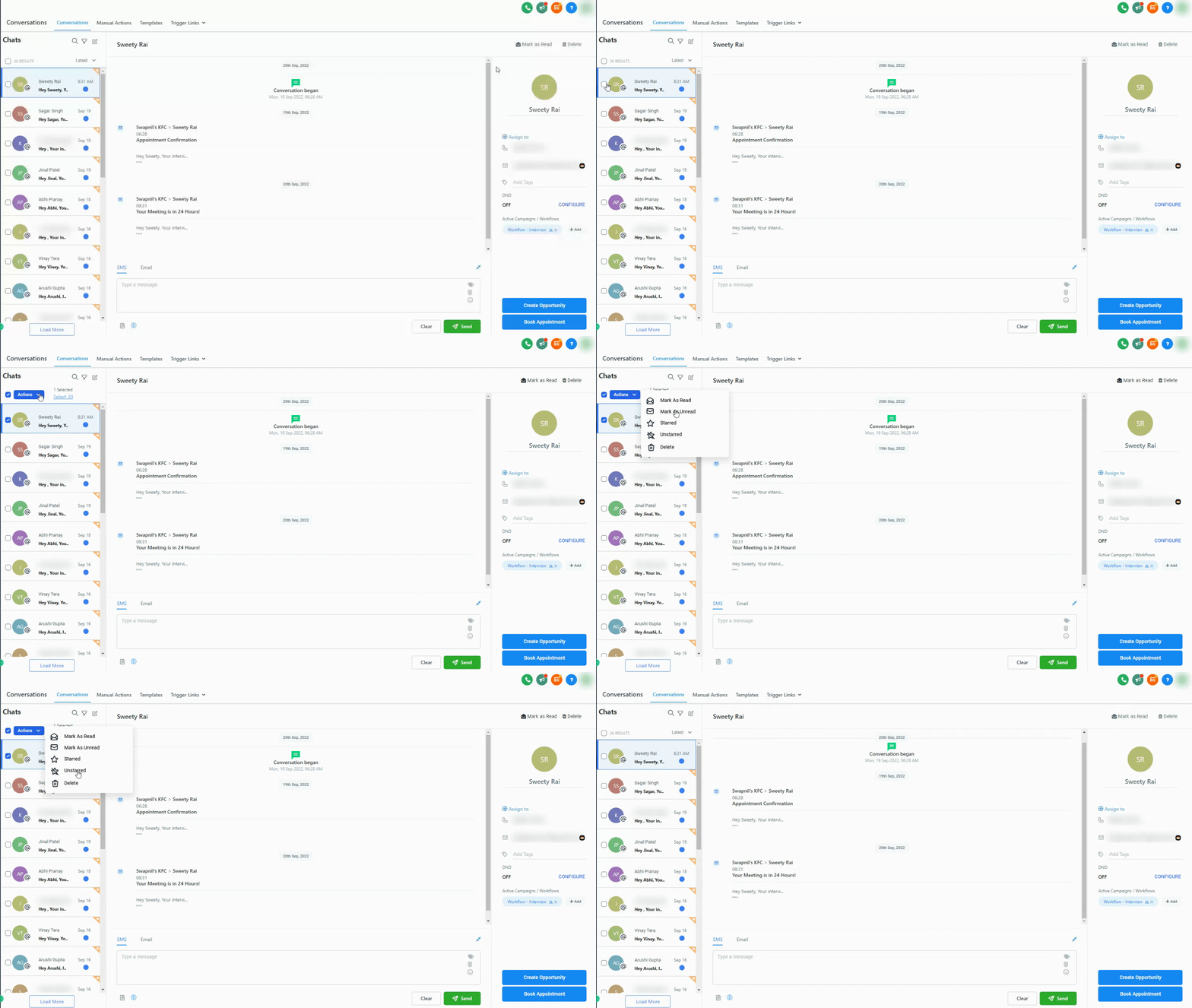
A conversation can be marked starred. By doing so, the conversation will have an icon attached to it for identification.
To mark a conversation as starred:
Click on the star icon in the upper right corner of the conversation preview window.
If you want to unmark a conversation as starred, simply click on the star icon again.
Need Help?
If bulk actions, filters, sorting, or starred conversations are not working as expected, first review the selected conversations and any active filters.
Verify that:
- You are working in the correct account.
- No more than 100 conversations are selected for a bulk action.
- The intended conversations are selected before applying a bulk action.
- Active filters are not hiding conversations you expect to see.
- The correct assignee, conversation type, channel, message type, or direction filter is selected.
- Sort order is set to Latest to Oldest or Oldest to Latest as intended.
- Filters and sorting are being used together as expected.
- The conversation was successfully marked as starred or unstarred.
- Deleted conversations were intentionally selected before using the delete action.
- Last outbound message filters are being applied only to conversations with matching message activity.
If the conversation list looks incomplete, clear the active filters and sorting, then reapply them one at a time to identify which setting is affecting the results.
If the issue continues, collect the affected filter or bulk action, number of conversations selected, expected result, actual result, and screenshots of the Conversations panel before contacting support.